
Silhouette Print & Cut for Printable Scrapbook Elements

Quick answer: Import the full-resolution artwork into Silhouette Studio, define a clean cut line, add the official registration marks and keep every element outside the restricted mark area. Print without changing scale, place the sheet on the mat in the displayed orientation and run a small test before cutting a complete page.
Prepare the artwork before tracing
Transparent PNG elements are easier to trace than files with a solid rectangular background. Remove stray pixels and decide whether small interior gaps really need to be cut. A practical paper element often benefits from a simple outer contour.
Use registration marks as part of the layout
The marks are not decoration. The machine sensor reads them to align the cut with the print. Do not place artwork over the restricted area, crop the marks, or let the printer scale the page after the layout is complete.
Create a useful cut line
Imported raster artwork needs a trace or another defined cut path. Inspect the line at high zoom. Excessive texture can create fragile pieces and long cutting times, while an offset can protect fine illustrated edges.
Match print orientation and mat orientation
Load the printed page on the mat exactly as Studio shows it. A rotated sheet or a different page setting breaks the relationship between marks and artwork. Keep the same printer settings from proof to final sheet.
Proof before batch cutting
Start with plain paper and one representative shape. If the cut drifts, check lighting, mat alignment, mark contrast and calibration before changing the artwork itself.
Five checks before you start
- Artwork has a clean background
- Registration-mark area stays empty
- Cut paths are inspected
- Print scaling remains unchanged
- One shape is proof-cut first
Recommended official resources
Interfaces, supported materials and machine limits can change. Check the current manufacturer documentation before buying equipment or preparing a large batch.
- www.silhouetteamerica.com official guidance
- www.silhouetteamerica.com official guidance
- www.silhouetteamerica.com official guidance
Printable collections to try with this workflow
Use a free sample or one page first so you can check scale, color and cutting settings before printing a complete collection.
Frequently asked questions
Does Silhouette Studio Basic import every file type?
File support varies by Studio edition. Check the current official edition comparison before buying an upgrade solely for one format.
Why can’t the machine read registration marks?
Common causes include marks being cropped or covered, reflective media, incorrect orientation, poor lighting or a scaled print.
ScrapBujo collections from our Etsy shop
Digital paper collections made for printing
Compare coordinated 12×12 papers, confirm the file specifications on ScrapBujo, and then visit Etsy for the current listing details.
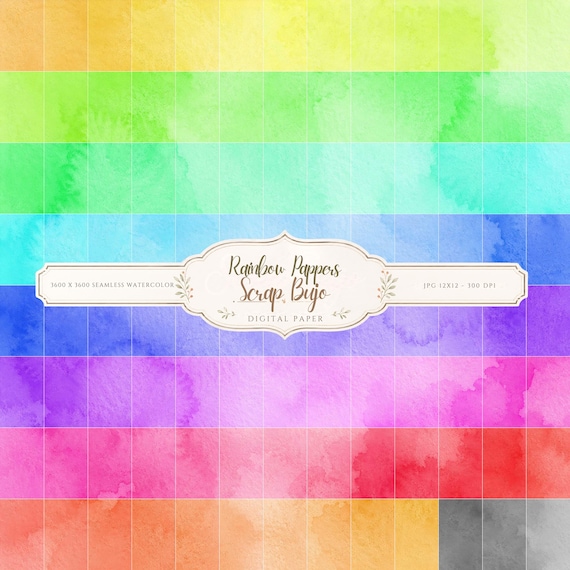
12×12 in 300 DPI Digital download
Coloring & Printables · Pastel & Watercolor
Pastel Watercolor Digital Paper Pack, Soft Rainbow Colors, Scrapbook
Bring soft color and handmade texture to your creative projects with this Pastel…
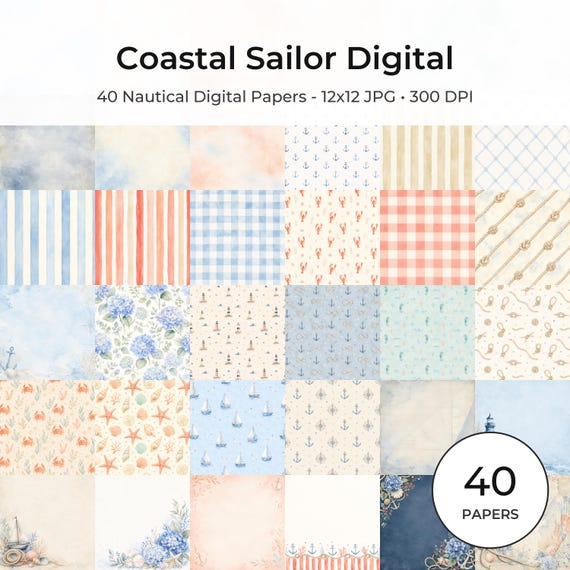
12×12 in 300 DPI Digital download
Coastal & Summer · Pastel & Watercolor
Nautical Digital Paper Pack, Watercolor Coastal Scrapbook Pages (12×12
Bring a fresh coastal touch to your creative projects with this nautical digital…
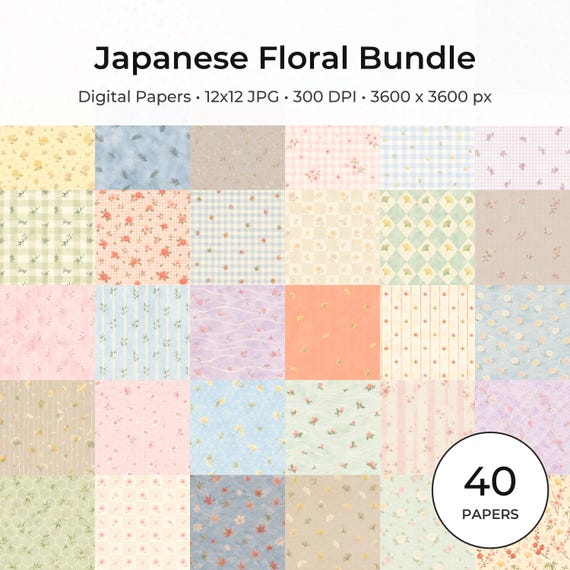
12×12 in 300 DPI Digital download
Coloring & Printables · Floral & Botanical
Japanese Floral Digital Papers Bundle
Bring timeless Japanese elegance into your creative projects with this premium bundle of…
ScrapBujo earns revenue when you purchase our products on Etsy. Etsy shows the current price, file details, and active offers.