
5 Teacher Planner Layouts for a Smoother School Week
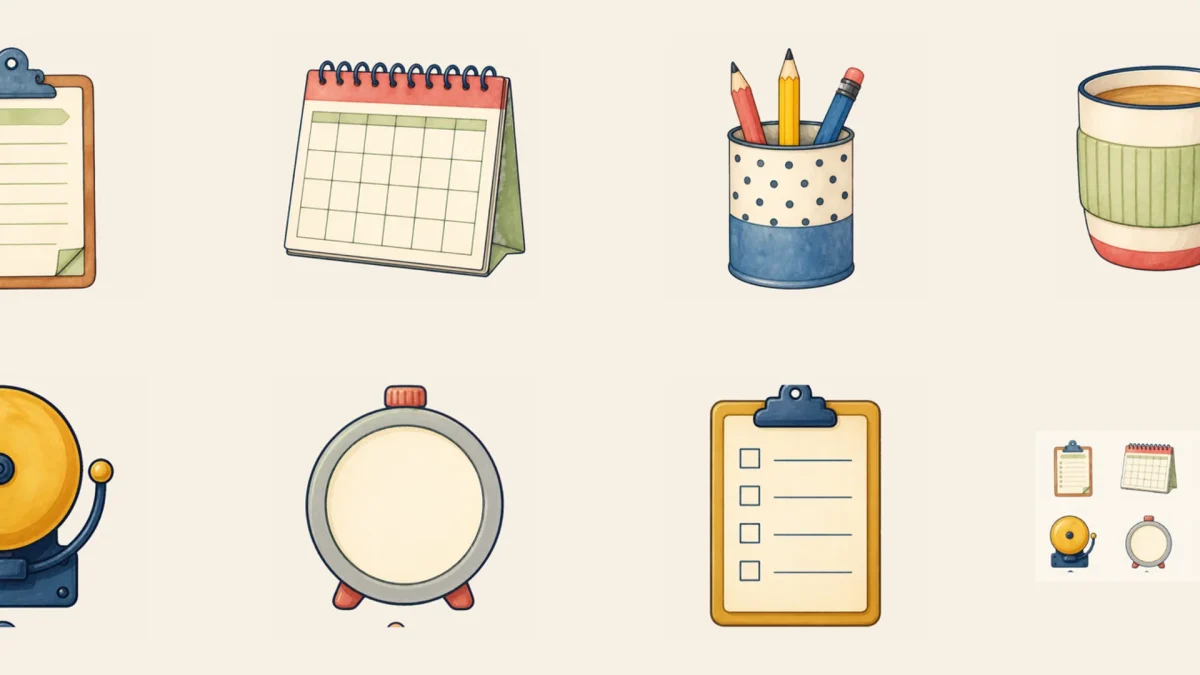
A teacher planner should reduce decisions during the week, not become another project to maintain. These five layouts separate lessons, materials, communication and follow-up so the information needed next is visible at a glance.
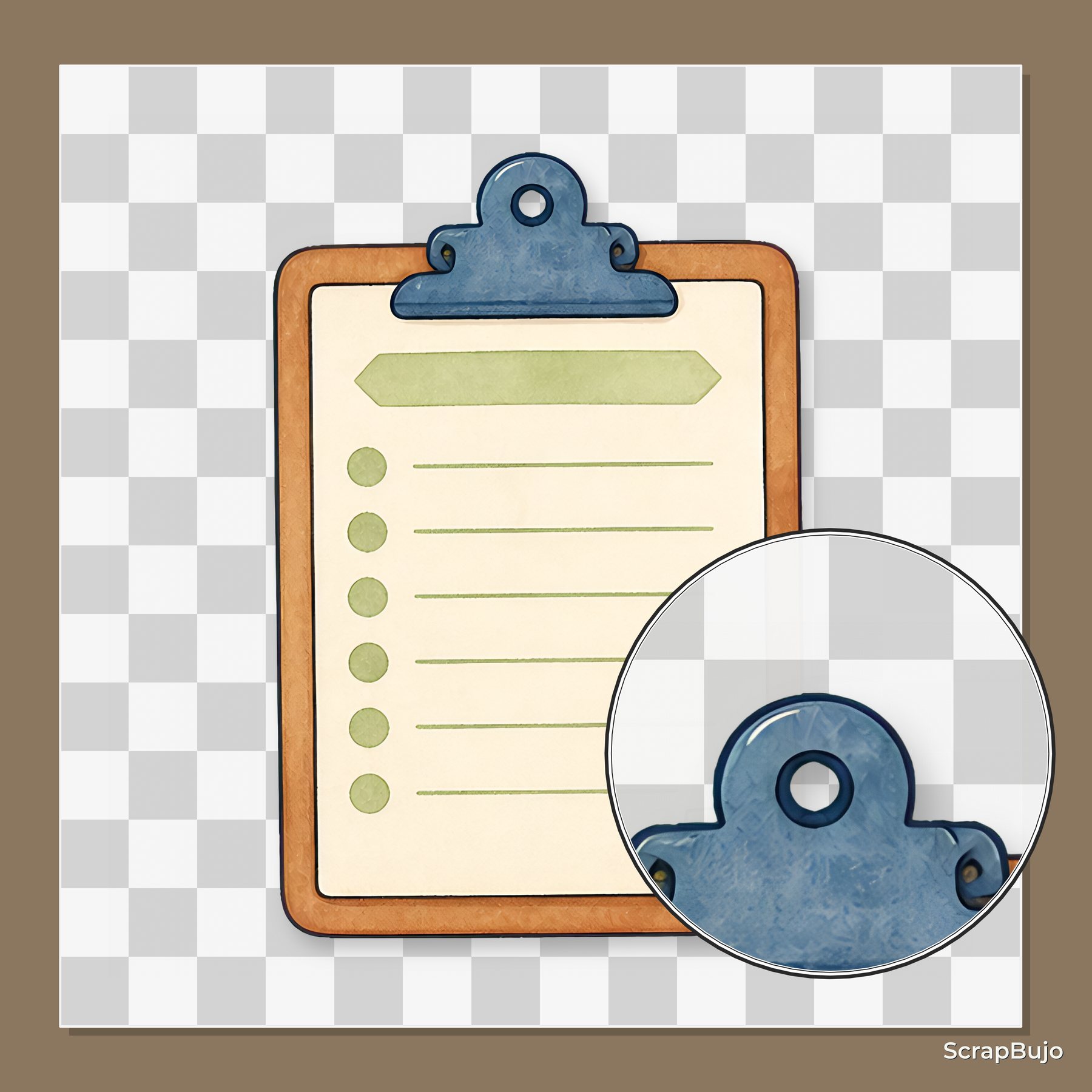
Give each page one job and repeat the same symbols every week. A calendar icon can mean deadlines, a clipboard can mean copies and a small star can mark a pupil follow-up; consistency matters more than decoration.
At a glance
- The five-day lesson map: Use columns for Monday through Friday and rows for subject blocks.
- Materials and copies dashboard: Separate items to gather, print, charge or borrow.
- Communication parking lot: Reserve one page for messages to send, replies to wait for and families to contact.
- Assessment follow-up grid: Note the skill to revisit, next action and review date.
- Friday reset: Carry forward priorities and prepare the first task for Monday.
Before you start
List the information you check daily and remove everything that belongs in the school’s official system. Print test pages on US Letter, 8.5 × 11 inches, and leave room for binding or disc-punch holes. Use a dark pen and keep decorative stickers outside writing boxes.
1. The five-day lesson map
Use columns for Monday through Friday and rows for subject blocks. Write only the lesson goal and resource code, then keep full plans elsewhere.
Build the week in three passes: enter each lesson goal, list the materials or copies it needs, then add only the deadlines and follow-ups you must see at a glance. Keep full lesson plans in the school’s approved system; this page is a weekly overview, not a replacement for official records.
2. Materials and copies dashboard
Separate items to gather, print, charge or borrow. Add checkboxes large enough to mark while standing at the copier.
Group supplies and copies by day or subject, then note the quantity and whether each item is ready, borrowed or still to prepare. Use short labels that are easy to scan; keep private student details in the school’s approved system.
3. Communication parking lot
Reserve one page for messages to send, replies to wait for and families to contact. Use a simple status key such as to send, waiting and done, with one follow-up date per item. Keep sensitive family or student details in approved secure systems, not in a portable planner.
4. Assessment follow-up grid
For each skill, note the evidence to revisit, the next small-group action and when to check again. Treat the grid as a reminder only, not a permanent student record; keep individual names and scores in the school’s approved system.
5. Friday reset page
Use ten focused minutes on Friday to close the week and set up an easier start on Monday.
Write one item to carry forward, the first materials to prepare and one task you can drop or defer. A short, consistent reset makes the next week easier to start.
What to avoid
Do not duplicate full lesson plans or sensitive student details in a portable tracker. Keep writing space large enough to use, limit the page to information you will actually check, and store individual records only in school-approved systems. If you photograph a planner page, remove names and other identifying details first.
How to start today
Choose one class and one week. Add the five weekday headings, enter the next lesson goal and its materials, then leave a small space for follow-up. At the end of the week, remove any tracker field you did not use and keep private records in the school’s approved system.
Prefer a separate printable teacher planner?
Download the free Teacher Planner for August 2026 to August 2027. It is a separate 38-page US Letter planner, not a sample of the sticker kit featured in this article.
Check the file size before printing
Match each downloaded sheet to the paper size and printer settings it requires. The 300 DPI to pixels calculator helps check image dimensions, and the 12×12 printing guide explains how to print square digital papers at their intended size.
Keep the weekly view easy to scan
Make lesson goals and due dates the first things you notice, then use small labels or stickers for supporting information. Leave open space for notes and keep decoration outside writing areas so the planner stays practical on a busy day.
Choose paper for the job
For pages you will write on, choose paper that suits your pen and printer; test one sheet before printing a full set. Check the printer manual for supported paper sizes and weights, especially when adding sticker sheets or thicker dividers.
See the quick visual Story for this guide.
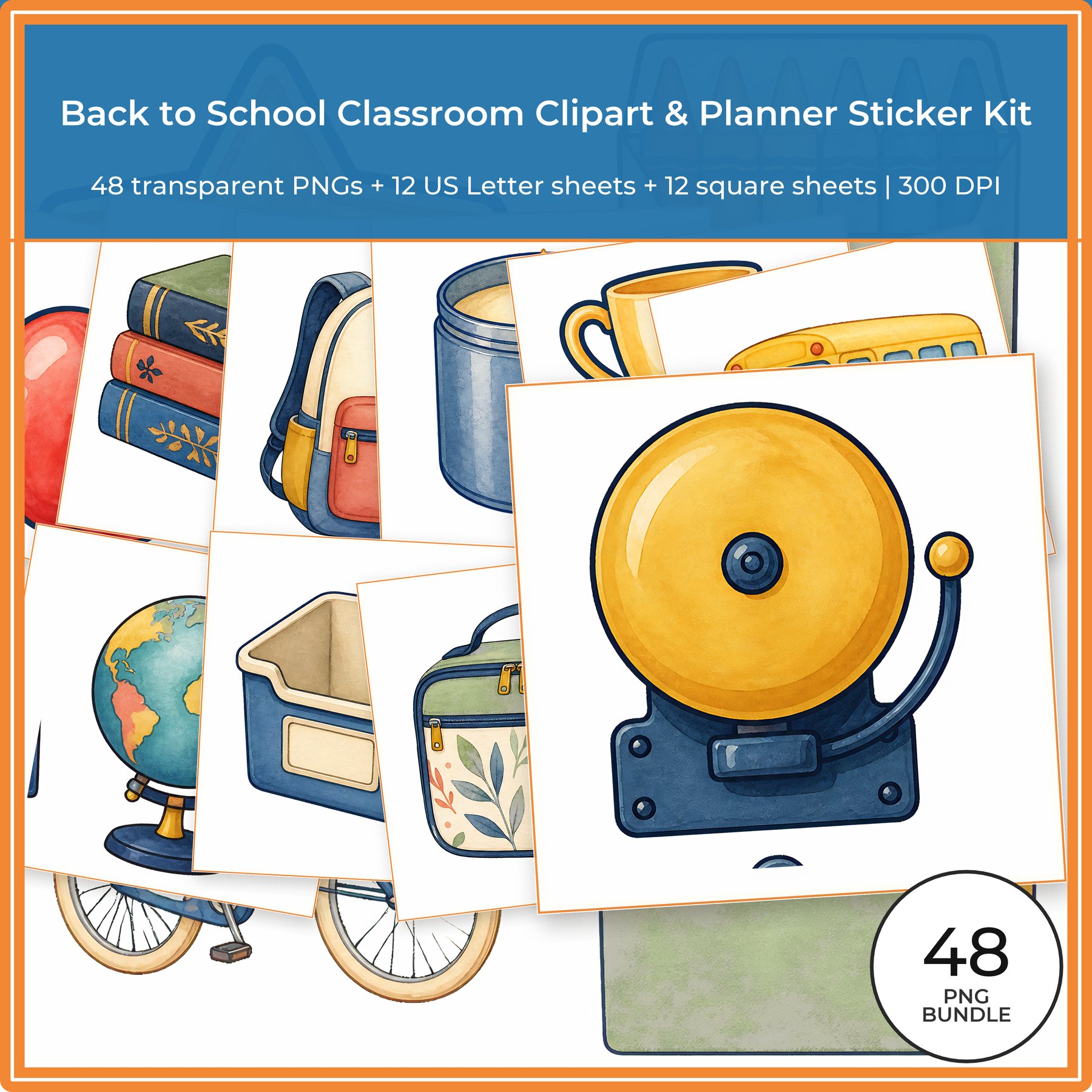
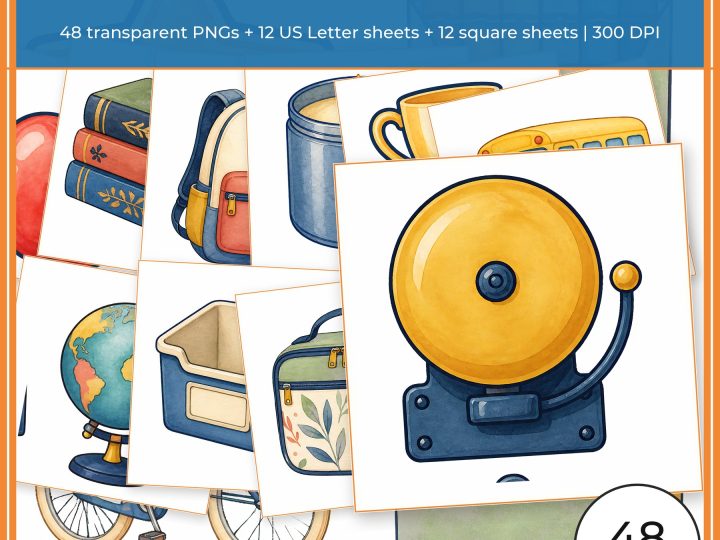
Explore Back to School Classroom Clipart & Planner Sticker Kit on ScrapBujo for the coordinated previews and file details.
View this digital collection on Etsy. This is a digital download; no physical paper is shipped.
Source note: The collection facts and preview images in this article were rechecked against the live ScrapBujo collection page on 2026-09-30. The examples are digital previews, not physical print tests; check Etsy for current price and checkout terms.
Explore ScrapBujo digital collections
Explore the related digital collection
Review the collection previews and current file details before choosing a format.
12×12 in 300 DPI Digital download
School & Kids
Back to School Classroom Clipart & Planner Sticker Kit
Build teacher planners, classroom pages and school crafts with 48 coordinated transparent PNG…
Each product page identifies its checkout, current price, and digital delivery details.