
What Is Included in a Complete Digital Scrapbook Collection?
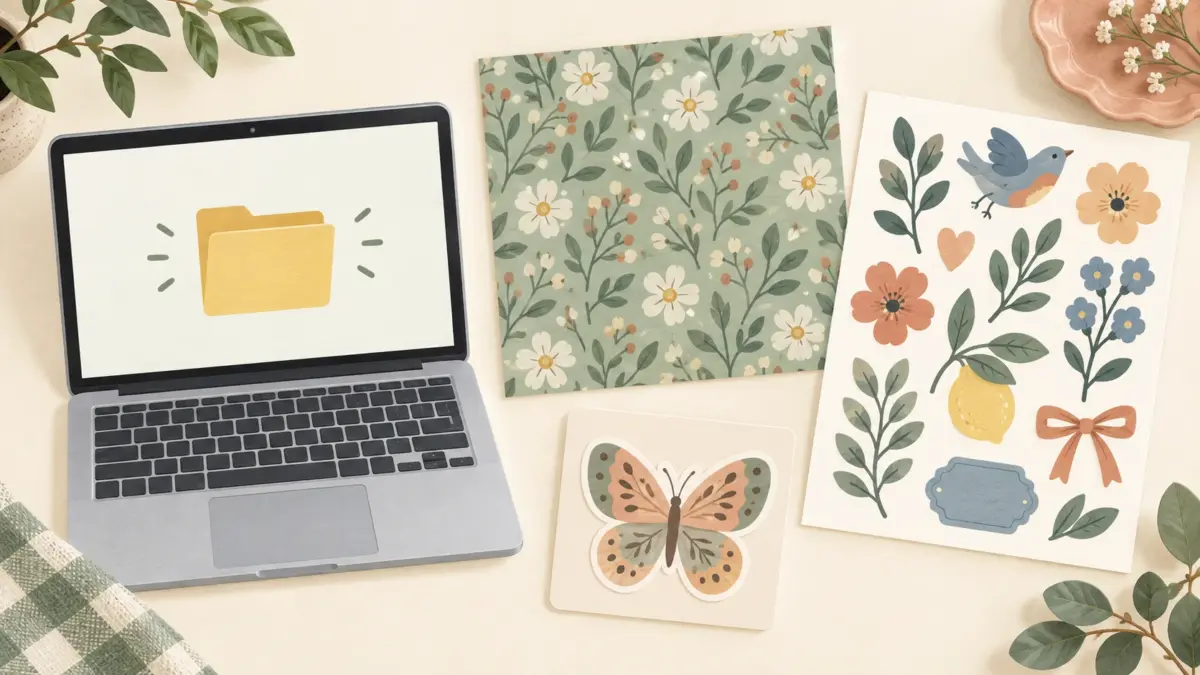
A digital scrapbook kit is a coordinated set of files you download and use to make scrapbook pages or other paper projects. A kit may contain patterned papers, embellishments, alphabet art, or other pieces, but each seller chooses what to include. Check the specific listing for its contents, file types, dimensions, and license; a digital kit is not printed paper shipped to your home.
Image note: The header image is an illustration, not a photograph of Juan working in an actual studio.
What might be included?
Digital kits can bring together several kinds of design files. Depending on the product, you might see:
- Full-page papers: backgrounds for layouts, journals, cards, or other projects.
- Supporting patterns: smaller-scale or lower-contrast designs that pair with focal papers.
- Embellishments: decorative motifs such as flowers, labels, frames, or icons.
- Other extras: alphabet art, word art, templates, or ready-made pages—only when the listing names them.
These are possible kit components, not a promise that every collection includes all of them. A paper-only pack can still be a complete purchase if it contains the designs you need.
Designs, files, and sheets are different counts
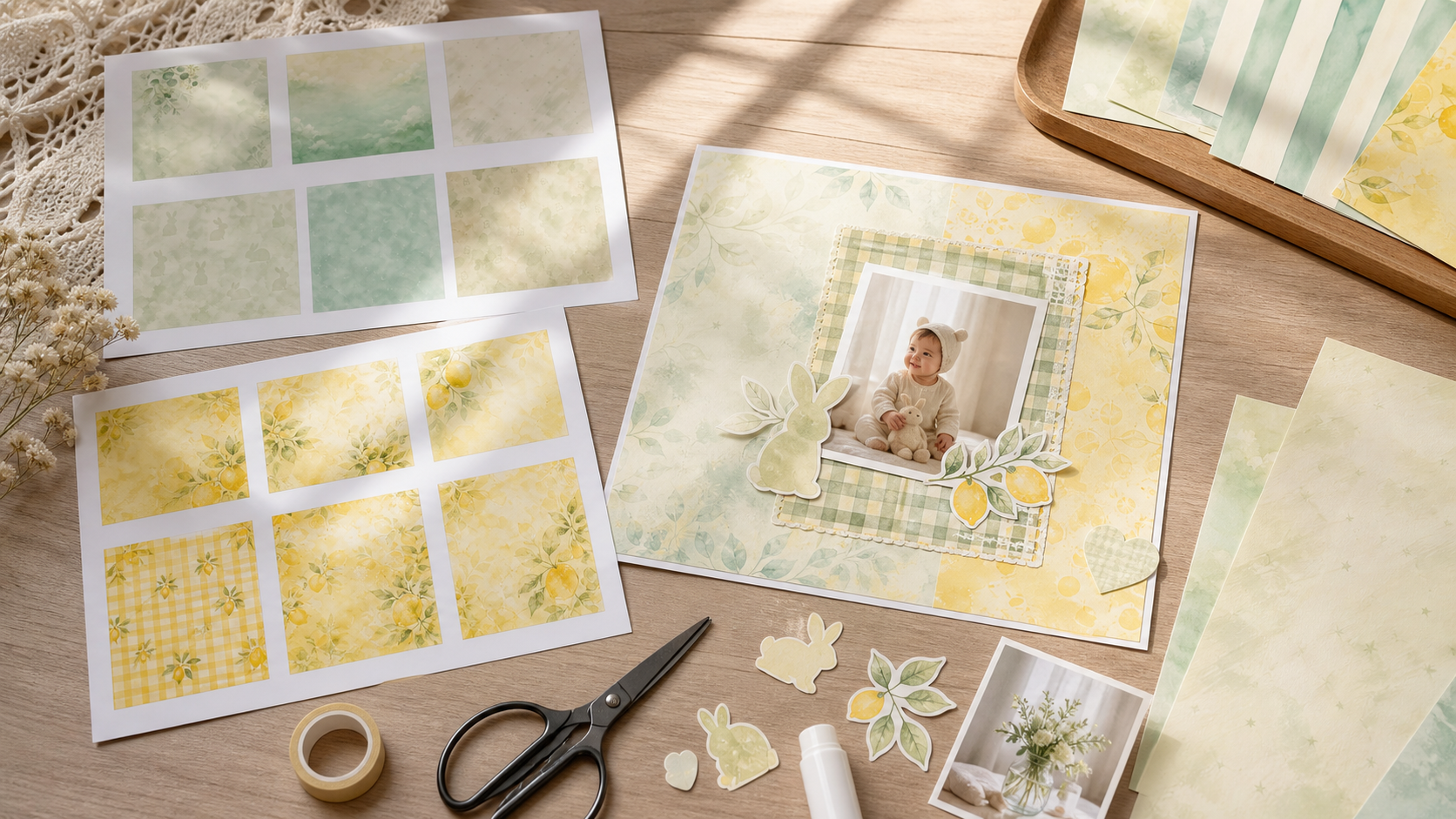
Before comparing quantities, check what the number refers to. A design is an artwork or variation. A file is a separate item in the download. A printable sheet can place several motifs together on one page. One sheet is not automatically several separate image files, and one design may be supplied in more than one size or format. Example only: a download containing one printable sheet with nine motifs supplies one sheet file, not nine individual PNG files. Use the listing’s file inventory and preview images to see what you will actually receive.
Check the format and the supplied dimensions
Look for the file type and pixel dimensions stated for that product. Do not assume every paper is 12×12 inches, includes a US Letter or A4 version, or has a particular resolution. For a 12×12-inch print at 300 pixels per inch (PPI), the image needs 3600×3600 pixels (12 × 300 per side). If a listing gives a “DPI” label, check the actual pixel dimensions too; the label alone does not establish native detail. The stated dimensions and resolution belong to that listed file; they do not describe every kit.
For printing at home, compare the image dimensions with your paper and printer. US Letter paper is 8.5×11 inches, so a 12-inch-square design must be reduced, cropped, tiled, or printed on larger paper to fit. See our JPG, PNG, and PDF guide for a concise format comparison. For paper and printer choices, read our home-printing paper guide; for the size tradeoff, see 12×12 vs. US Letter digital paper.
PNG does not always mean individual transparent pieces
A PNG file may have transparent areas, a solid background, or several motifs arranged together on a printable sheet. Check the listing description and preview to learn which it is. Individual transparent PNGs are useful when you want to layer separate elements in software, while a printable cutout sheet may place several motifs on a white background for printing and hand cutting. The extension alone does not tell you which format of artwork is included.
Choose a style for the pages you want to make
Look beyond the cover image. Check whether the previews show a mix of bold focal designs and quieter patterns, and whether the motifs suit your subject. A theme name does not guarantee a particular balance of florals, icons, or open space. Choose the designs that fit your own photos, story, or project.
Choose a digital or printed-page route
For a digital page, use a supplied paper file as a background in an editor that supports its format, then add a photo and a short memory. Keep an editable copy; you can decide later whether to print. See our one-photo, one-story guide to making a first digital scrapbook page.
For a physical album page, print a supplied paper design, trim it to fit, and add a photo or handwritten notes. You do not need to arrange the page in an editor first. For print-size and service choices, use our guide to printing 12×12 pages at home or through a print shop. Check the specific kit listing before printing to confirm its supplied files and size.
A quick buyer checklist
- Read the listing’s exact contents and count labels.
- Separate the number of designs from the number of files and printable sheets.
- Confirm file types, pixel dimensions, and any stated print size or resolution.
- Check whether embellishments are individual transparent images or motifs on a printable sheet.
- Review the previews for designs that fit your project.
- Read the license attached to that product for the uses you have in mind.
Use the specific listing as your final checklist. If a format, size, component, or license term is not clearly stated, do not assume it is included.
Explore ScrapBujo digital collections
Digital paper collections for your next project
Explore coordinated digital collections on ScrapBujo, compare formats, and follow the checkout shown for the product you choose.

12×12 in 300 DPI Digital download
Digital Scrapbook Papers · Seasonal & Holidays
Aurora Ribbon Christmas: 40 Abstract Scrapbook Papers
40 coordinated abstract Christmas and winter scrapbook papers in 12 × 12 inch…
12×12 in 300 DPI Digital download
Digital Scrapbook Papers
Alpine Knit Winter — 40 Digital Scrapbook Paper Designs
40 alpine winter paper designs in 12 × 12 inch and US Letter…
12×12 in 300 DPI Digital download
Digital Scrapbook Papers
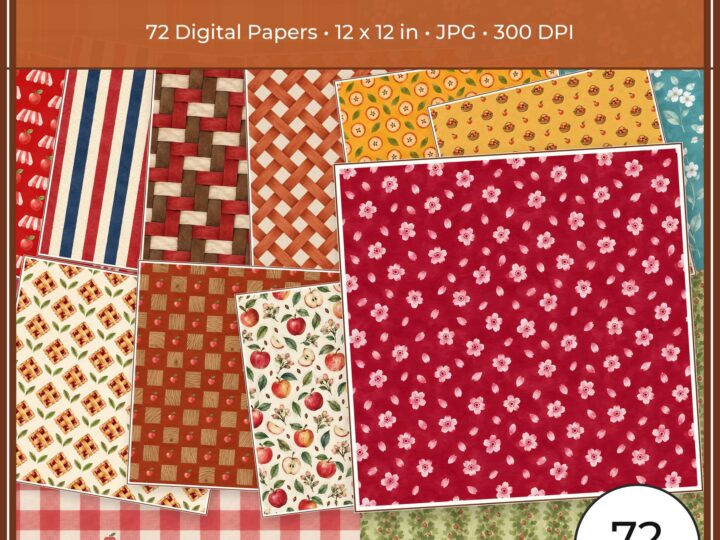
Apple Orchard & Cider Harvest Digital Papers
Build an apple-picking scrapbook page, journal entry or recipe card with 72 square…
Each product page identifies its checkout, current price, and digital delivery details.