
How to Make Your First Digital Scrapbook Page: One Photo, One Story
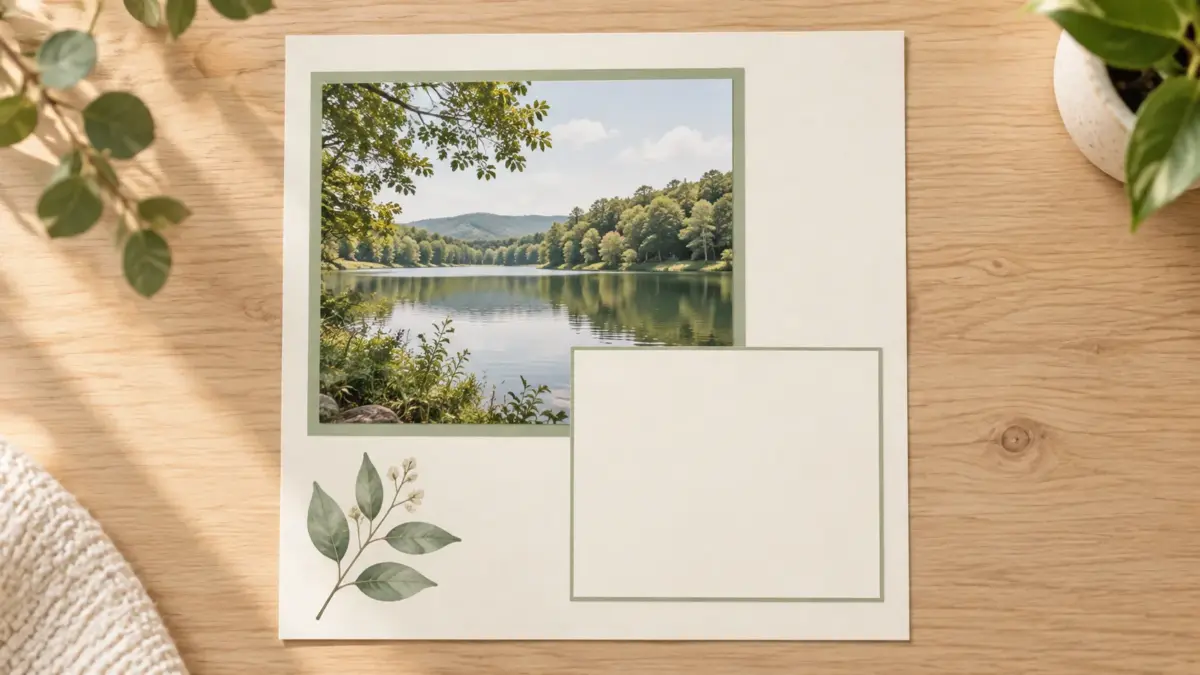
Quick answer: Choose one photo, write a short memory about it, and arrange those two pieces with enough space to read each one clearly. You can keep the page digital and decide later whether you want to print it.
Illustration: The page layout above is AI-created. It is not a downloadable template or a physical print test.
Make one page from one memory
You do not need to fill the page or choose a complete collection before you begin. Start with a photo you want to remember. Write one or two sentences about a detail that might fade: what happened just before the picture, what made you laugh, or what you would like to remember about that day.
A simple layout to try
Place one photo in the upper half of your page, with a simple mat around it. Leave an open area in the lower-right for your short memory. Add one small accent near a corner if the page feels unbalanced; leave it out if the photo and words already feel complete.
Example caption: “A quiet walk by the lake after the rain. The clouds cleared just as we reached the water.” Replace it with words that fit your own memory.
This arrangement is a starting point, not a template or a rule. It shows how a photo and short story can share a page and stay easy to see.
A measured example (optional)
For a digital starting point, imagine an 8 × 8 in square page. At 300 PPI, that canvas is 2400 × 2400 pixels. These measurements describe one possible layout, not a downloadable template or a physical print test:
- Place a landscape photo, 4 × 3 in, 1 in from the top and 1 in from the left. Keep its proportions; if it needs trimming, crop a working copy instead of stretching it.
- Place a text block, 6 × 2 in, at x = 1 in and y = 4.5 in. Measure x and y from the page’s upper-left corner.
The photo ends at x = 5 in and y = 4 in; the text starts half an inch below it. The text ends at y = 6.5 in, leaving 1.5 in below and 1 in to the right. The pixel canvas is an optional export target. Changing PPI alone does not add image detail.
Build the page in a few steps
This is a layout plan, not a walkthrough of one app’s buttons. Choose an editor that lets you place pictures and text on a page.
- Pick one photo. Keep the original safe, then use a working copy.
- Write the memory first. A specific detail is enough. If a prompt helps, note where you were, what was happening, or what you want to remember.
- Choose your page size before placing photos. For an album page, match the actual finished dimensions specified for your album or protector. For a sheet you plan to print, choose a size your printer supports, such as US Letter (8.5 × 11 in) or A4 (210 × 297 mm). These sheet sizes do not define the finished dimensions of an album page.
- Arrange the photo and words. Leave visible space around both. Add a mat or small accent only if it helps the photo stand out.
- Check readability. View the page at the size you plan to use. If the words are hard to read, make them larger, shorten the story, or give the text more room.
- Save an editable working copy. If you want a shareable or printable version, make a separate export using an option your editor supports. You can make that choice later.
If something feels off
- The photo feels busy: leave more open space around it, or move the words into a plain text area.
- The photo looks stretched: keep its proportions and crop a working copy instead of pulling its edges out of shape.
- The story is hard to read: shorten it or give it more room before adding decoration.
Keep the first page simple
Look at the photo, then read the memory. If both are easy to find and the words are comfortable to read, the page has done its job. You can stop there; a first page does not need extra papers, decorations, or a print decision.
If you decide to print later
Check the exported image’s pixel dimensions against the print size you want, and confirm that your printer or print service supports that size. Use the print-size calculator to estimate how large those pixel dimensions can print at a selected PPI. Keep the editable copy so you can adjust the layout before exporting again. If you are working with a 12 × 12 design and US Letter or A4 paper, see our guide to printing 12 × 12 paper on Letter or A4. The steps depend on your file and printing setup.
If you are still choosing a project type, our project-choice guide compares a page, card, and journal entry. For file-format basics, read the JPG, PNG, and PDF guide.
When you are ready to explore materials, browse the ScrapBujo collection catalog or try a free printable sample. Learn more about ScrapBujo.
Explore ScrapBujo digital collections
Digital paper collections for your next project
Explore coordinated digital collections on ScrapBujo, compare formats, and follow the checkout shown for the product you choose.

12×12 in 300 DPI Digital download
Digital Scrapbook Papers · Seasonal & Holidays
Aurora Ribbon Christmas: 40 Abstract Scrapbook Papers
40 coordinated abstract Christmas and winter scrapbook papers in 12 × 12 inch…
12×12 in 300 DPI Digital download
Digital Scrapbook Papers
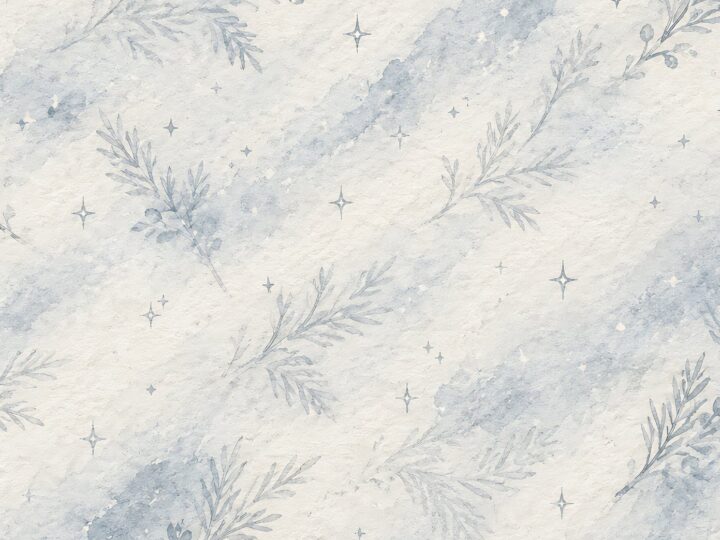
Alpine Knit Winter — 40 Digital Scrapbook Paper Designs
40 alpine winter paper designs in 12 × 12 inch and US Letter…
12×12 in 300 DPI Digital download
Digital Scrapbook Papers
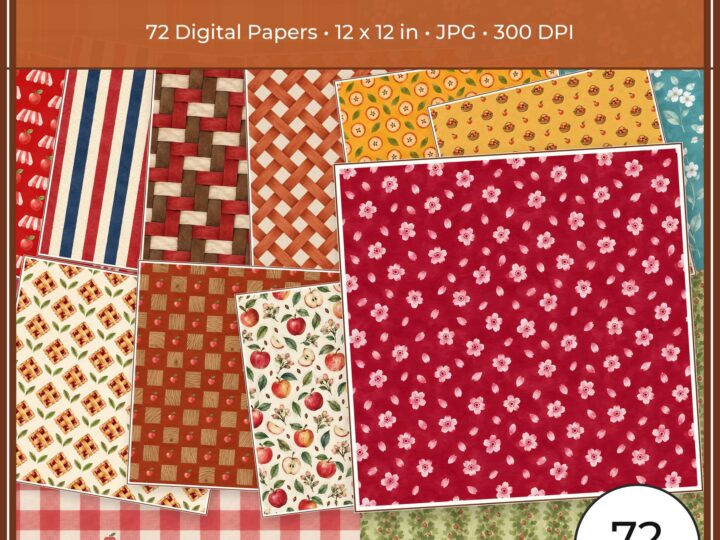
Apple Orchard & Cider Harvest Digital Papers
Build an apple-picking scrapbook page, journal entry or recipe card with 72 square…
Each product page identifies its checkout, current price, and digital delivery details.