
A Beginner Scrapbook Weekend Plan for One Small Project
Quick answer: Plan one scrapbook project across your weekend: choose its page format and destination first, check the layout before committing materials, and leave a clear note if you need to pause.
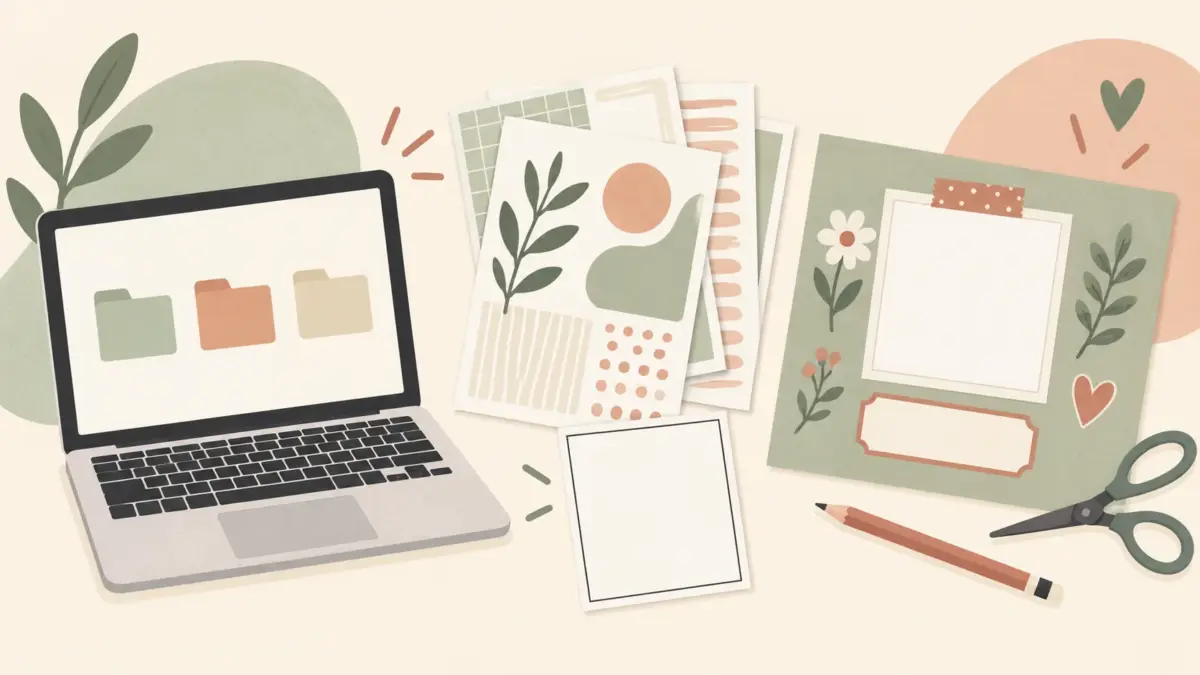
AI-generated editorial illustration of a simple weekend scrapbook craft setup. It does not depict a physically completed project or an included template.
Choose the project and where it will go
Start with one outcome, such as a two-page memory spread for a trip. Decide whether you want an editable digital layout, printed pages, or a physical project. If you are making an album page, check the album or sleeve size before choosing the page format. This avoids preparing a square layout when the page needs to fit a different space.
Choose the photo or keepsake and the digital papers or other materials you already have. For digital files, check the listing for the included formats and sizes, then confirm your editor can open them. A collection preview shows the design; it does not replace checking the file details. If an original photograph is irreplaceable, work from a copy. The Library of Congress advises against applying adhesives directly to photographs and describes photo corners or sleeves as alternatives for keeping photographs with an album page. See the Library of Congress guidance on photographs.
Friday: set the boundaries
Write down what “finished” means for this project—for example, the photo and caption are arranged, saved, and ready for the album sleeve you selected. List only the materials needed for that result. If printing is part of the plan, check the intended page size and your printer’s supported paper before preparing a batch. A digital layout is a useful stopping point when printing or supplies are unavailable.
Save the project file where you can find it. Add a short note with the page format, intended destination, and next step. That gives you a restart point if the weekend gets interrupted.
Saturday: assemble a draft
Arrange the photo or keepsake with a background and any supporting pieces. Before printing or attaching anything, check the crop: keep the part of the photo that matters visible and make sure a sleeve, mat, or fold will not cover it. View the layout at the intended size. Confirm that a date or short note remains readable and that the page fits its destination.
Adjust the draft before committing materials. If the photo feels crowded, simplify the layers or change the crop. If the text is difficult to read, give it more space or shorten it. For a physical page, place the pieces first and attach them only after the arrangement works for your project.
Sunday: finish the planned details
Add the date, names, or one detail you want to remember. Complete the parts from your original plan, then save the editable file or gather the physical page and any loose pieces together. If one step remains, write it as a specific action—such as “check whether the caption clears the sleeve”—instead of starting another project.
A restart note can be a few lines in your own project notes; it is not a ScrapBujo download or a required template. For a trip spread, it might read:
- Project / format / destination: weekend-trip spread / digital layout / album sleeve
- Last completed step: arranged the photo and background
- Next specific action: check the caption position against the sleeve
- Files or materials still needed: photo copy, selected papers, caption
A flexible example
For a weekend-trip spread, the plan might be one photo, the trip date, and a short memory. Friday is for choosing the format and checking the sleeve; Saturday is for arranging the draft and reviewing the crop; Sunday is for adding the caption and saving the finished layout. If printing is not available, keep the project digital and leave the print step on the restart note. The plan has a stopping point without promising that every album will be completed in one weekend.
For a simple one-page layout starting point, see the beginner page guide. If you plan to print 12 × 12 paper on Letter or A4, check the 12 × 12 printing guide before choosing that route.
Explore the ScrapBujo collection catalog, try a free printable sample, or read the ScrapBujo story.
Explore ScrapBujo digital collections
Digital paper collections for your next project
Explore coordinated digital collections on ScrapBujo, compare formats, and follow the checkout shown for the product you choose.

12×12 in 300 DPI Digital download
Digital Scrapbook Papers · Seasonal & Holidays
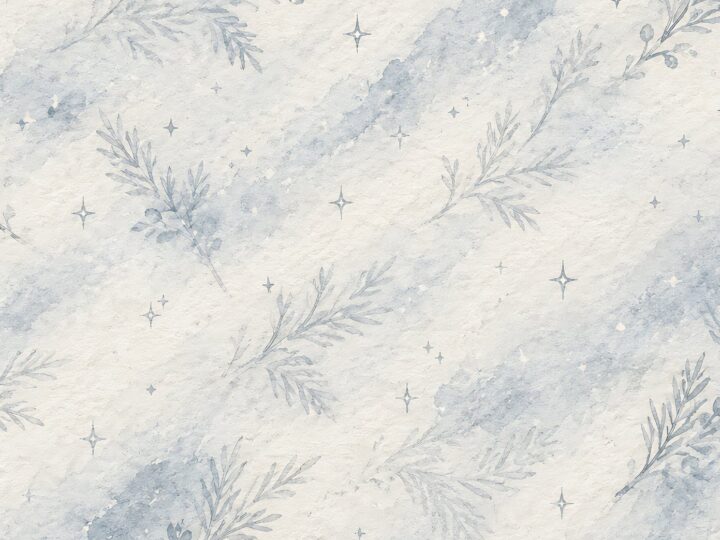
Aurora Ribbon Christmas: 40 Abstract Scrapbook Papers
40 coordinated abstract Christmas and winter scrapbook papers in 12 × 12 inch…
12×12 in 300 DPI Digital download
Digital Scrapbook Papers
Alpine Knit Winter — 40 Digital Scrapbook Paper Designs
40 alpine winter paper designs in 12 × 12 inch and US Letter…
12×12 in 300 DPI Digital download
Digital Scrapbook Papers
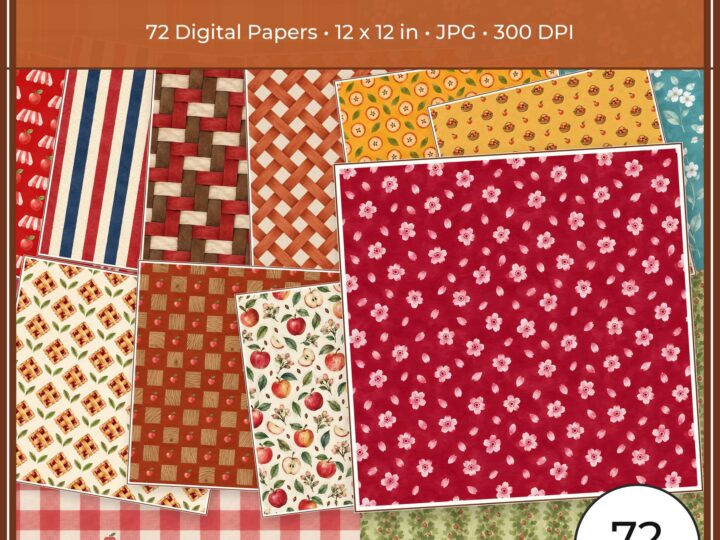
Apple Orchard & Cider Harvest Digital Papers
Build an apple-picking scrapbook page, journal entry or recipe card with 72 square…
Each product page identifies its checkout, current price, and digital delivery details.