
How to Print 12×12 Digital Paper on Letter or A4 Without Distortion
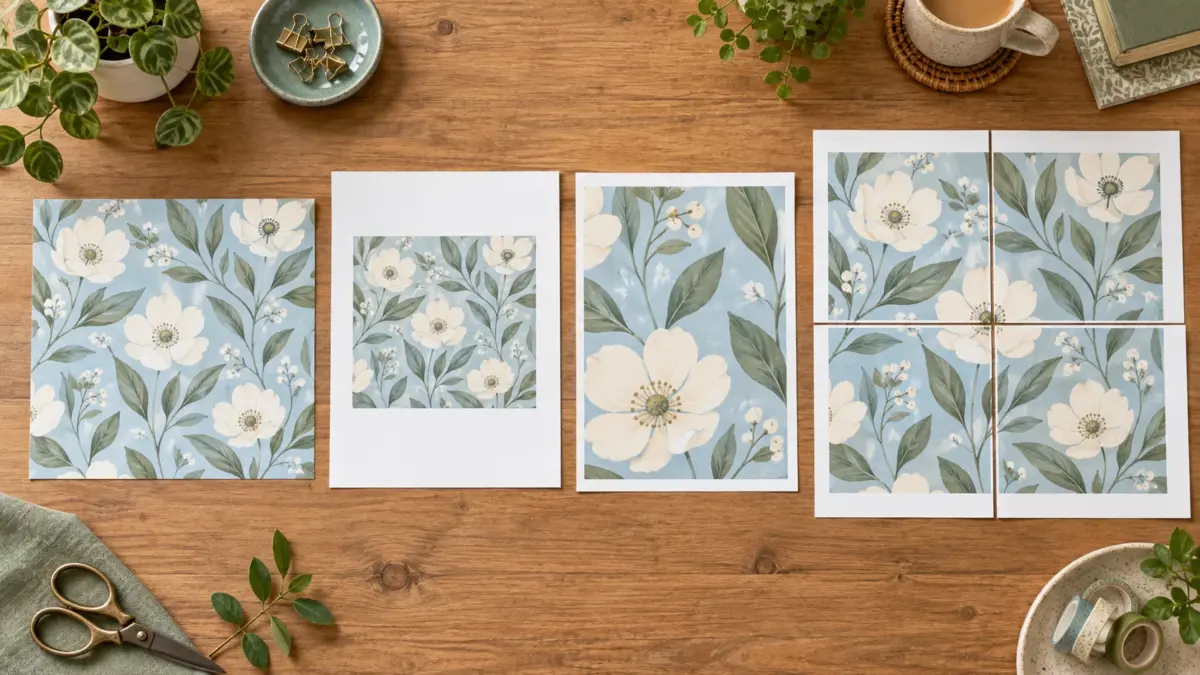
Quick answer: A 12 × 12 square cannot fill a rectangular Letter or A4 sheet without cropping, white space or distortion. Keep the width and height linked. Choose one honest result: reduce the whole square, crop a deliberate section, or tile the full page across multiple sheets.
Choose reduce, crop or tile
Reducing preserves the whole design but produces a smaller square. Cropping fills more of the page but removes part of the artwork. Tiling preserves the intended size across several sheets and requires trimming and joining.
Print a 12×12 JPG on one Letter sheet
Open the JPG in a photo or print app and select US Letter (8.5 × 11 inches), portrait orientation, and one image per page. Choose Fit or Entire Image to keep the whole square; it will print smaller, with unused space above and below. Choose Fill or Crop to cover the selected print area while keeping the proportions; part of the square will be cut away. Check the preview for cropped edge details and reposition the design in an editor if needed. These settings do not remove printer margins unless the printer supports borderless printing on that paper. Labels vary by app. To keep a true 12×12 size, use the Poster tiling steps below or a compatible wide-format printer or print service.
In Preview on Mac, choose Scale to Fit, then Print Entire Image or Fill Entire Paper. See Apple’s Preview printing instructions.
Tile a 12×12 PDF across Letter or A4 sheets in Adobe Acrobat
If the square must stay at its intended 12 × 12-inch size but your printer accepts only US Letter or A4 paper, Adobe Acrobat’s Poster option can divide one oversized PDF page across several sheets. You trim and join those sheets after printing. Poster does not make a 12-inch square fit on one sheet; it preserves the full-size page by printing it in sections.
First confirm that the PDF page itself is 12 × 12 inches. A file name or preview image is not proof of its physical page size. If the PDF uses another page size, Acrobat will tile that size instead. Check the document properties or the dimensions shown in the print preview before selecting a scale.
Acrobat Poster printing steps
- Open the PDF in Adobe Acrobat and select Print this file. The exact placement of the print control can vary by Acrobat version.
- Under Page Sizing & Handling, choose Poster. Interface labels can vary by Acrobat version.
- Use 100% Tile Scale only when the PDF page is already the correct physical size and you want a true 12 × 12-inch result. A different percentage changes the finished size.
- Add a small Overlap if you want adjacent sheets to share an alignment strip. The useful amount depends on your printer margins and trimming method.
- Turn on Cut Marks and Labels when they help with trimming and tile order. Confirm that the marks remain inside the printable region.
- Select the Letter or A4 paper actually loaded in the printer. Keep paper size, orientation and scale identical for every tile.
- Inspect the live preview. Confirm that it contains the whole square, note the number of sheets and check whether a seam crosses an important motif.
- Print a plain-paper proof. Align the repeated areas or cut marks before trimming, join the sheets and measure the assembled square.
Adobe’s current poster and banner printing guide explains Tile Scale, overlap, cut marks, labels and preview. Its separate page sizing guide explains Fit, Actual Size and custom scaling.
Choose the finished size before changing the scale
At 100%, a correctly sized 12-inch square remains 12 inches tall and wide, so it needs multiple sheets. A smaller Tile Scale reduces the assembled square. Record the percentage with the project if you may print it again.
Do not change Tile Scale to repair a seam. First confirm that every sheet used the same scale, paper size and orientation. Then compare the overlap and source page dimensions. Acrobat calculates the tile count from the printable area, so let the preview show how many rows and columns the selected printer needs.
Use the ScrapBujo 300 DPI pixel calculator if you also need to check whether the source image has enough pixels for the intended size. For a 12 × 12-inch image at 300 PPI, the usual target is 3,600 × 3,600 pixels.
When tiling is the wrong choice
Choose Fit when you want the complete square on one sheet and accept a smaller result. Choose a deliberate crop when the project needs only part of the pattern. Choose Poster when the full page must remain at its intended size and you can trim and assemble several sheets.
A seam is harder to hide when it crosses text, a face or a central illustration. If possible, position the join through a quiet or repeating area. Printer support, paper weight, feed path and nonprinting margins remain model-specific, so print one proof before using specialty paper.
Full-size tiling checklist
- The PDF page is confirmed as 12 × 12 inches.
- Poster is selected and the finished scale is intentional.
- Paper size, orientation and scale match on every sheet.
- Overlap, labels and cut marks are visible in the preview.
- The seam avoids the most important part of the artwork when possible.
- A plain-paper proof is assembled and measured first.
Never stretch one dimension
Changing a square file to a rectangular shape without proportional scaling distorts circles, faces and motifs. Lock the aspect ratio in the design or print software and inspect the preview before printing.
Understand Fit and Actual Size
Adobe defines Fit as scaling the page to the printable area, while Actual Size prints without scaling and crops content that does not fit. Use Actual Size only when the selected paper can hold the intended output or when cropping is deliberate.
Calculate the reduced square first
For a whole-square reduction, use the shorter side of the printable area. Before printer margins:
- US Letter (8.5 × 11 inches): an 8.5-inch square, about 70.8% of a 12-inch source.
- A4 (210 × 297 mm): a 210 mm square, about 68.9% of a 304.8 mm source.
- Illustrative Letter example: hypothetical 0.25-inch nonprinting margins on every edge leave an 8 × 10.5-inch printable area; the largest whole square is 8 inches, about 66.7%. This is an example, not a printer default.
These percentages are geometry, not driver presets. Measure your printer’s actual printable area; if you choose Fit, check the print preview for the resulting size. Keep units matched: scale = 100 × (target side ÷ 12 inches), or 100 × (target side ÷ 304.8 mm).
Use a ruler test
Include a reference square in the source page before scaling it. Its expected printed side is the original side × (scale percentage ÷ 100). At 100%, a one-inch square should remain one inch; at 66.7%, it should be about 0.667 inch (16.9 mm). With Fit, use the percentage shown in the print preview if available; otherwise, compare the finished design with its intended dimensions. Judge the result against the selected scale, not against one inch in every case.
Five checks before you start
- Reduce, crop or tile is selected
- Aspect ratio stays locked
- Fit versus Actual Size is understood
- Printer margins are considered
- A reference square is measured
Recommended official resources
Interfaces, supported materials and machine limits can change. Check the current manufacturer documentation before buying equipment or preparing a large batch.
- Adobe Acrobat page sizing: Fit, Actual Size and custom scaling
- Adobe Reader printing guide
- Adobe Photoshop printed image resolution guide
Printable collections to try with this workflow
Use a free sample or one page first so you can check scale, color and cutting settings before printing a complete collection.
- Vintage Junk Journal Digital Paper Bundle — Two Packs, Square + US Letter
- Eclipse Botanical Shadow Herbarium A4
- Eclipse Observatory Field Notes Letter
Frequently asked questions
Can I use Microsoft Word to print a 12×12 JPG?
Yes. Insert the JPG into a US Letter or A4 document, select it, and use Picture Format > Size to set a width that fits within the page margins. Keep Lock aspect ratio selected so the square isn’t stretched; exact labels vary by Word version. Open File > Print, check the preview, and print one copy as a proof. On one Letter or A4 sheet, the image must be smaller than 12 inches. A custom 12 × 12 page in Word won’t make an unsupported paper size printable. For a true 12-inch square with a Letter- or A4-only printer, use Adobe Acrobat’s Poster steps above to tile it across sheets.
Can I print a full 12×12 page on US Letter?
Not on one sheet at true size. You must reduce it, crop it or tile it across several sheets.
Why is my square design rectangular after printing?
One dimension was probably stretched or the software forced the file into a rectangular page without preserving its aspect ratio.
Can I send a 12×12 PDF to a local or online print service?
First confirm that the PDF page is 12 × 12 inches, then ask the service whether it can print that finished size and which file format, paper size, and paper options it accepts. Request 100% scale with no “fit to page” resizing. Ask for its bleed and trim requirements before preparing edge-to-edge artwork; use the service’s template if it provides one. Before ordering a full batch, request one proof and check the printed dimensions and trimmed edges.
Juan’s ScrapBujo Design Team
Advice and questions
Ask a follow-up or share what you are trying to make. Replies appear after moderation.
Ask a question or reply
Explore ScrapBujo digital collections
Digital paper collections made for printing
Compare coordinated 12×12 papers, confirm the file specifications on ScrapBujo, and then visit Etsy for the current listing details.
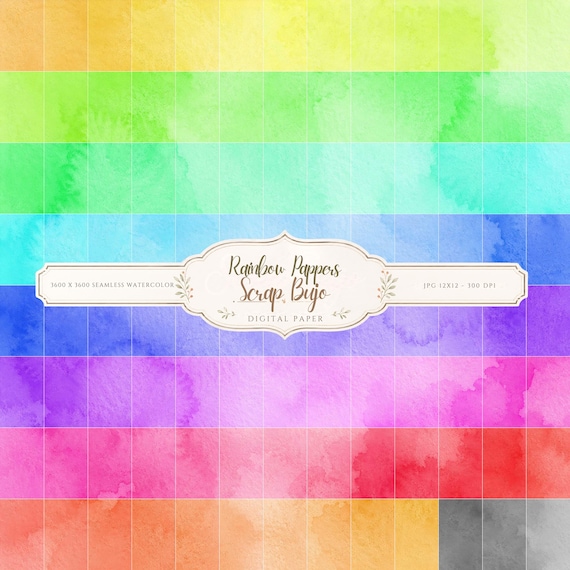
12×12 in 300 DPI Digital download
Coloring & Printables · Pastel & Watercolor
Pastel Watercolor Digital Paper Pack, Soft Rainbow Colors, Scrapbook
Bring soft color and handmade texture to your creative projects with this Pastel…
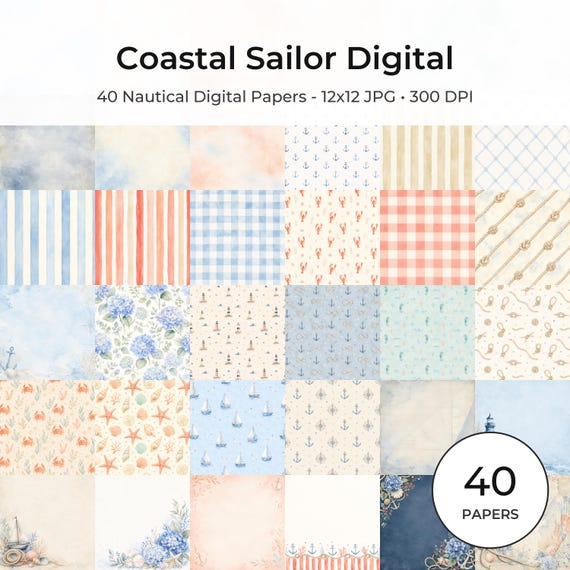
12×12 in 300 DPI Digital download
Coastal & Summer · Pastel & Watercolor
Nautical Digital Paper Pack, Watercolor Coastal Scrapbook Pages (12×12
Bring a fresh coastal touch to your creative projects with this nautical digital…
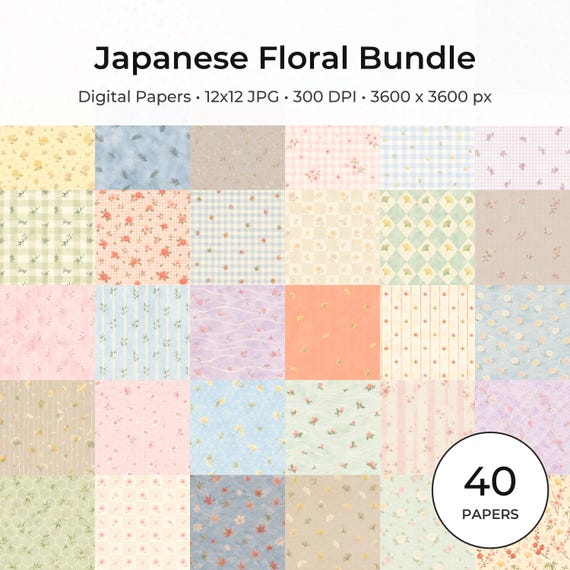
12×12 in 300 DPI Digital download
Coloring & Printables · Floral & Botanical
Japanese Floral Digital Papers Bundle
Bring timeless Japanese elegance into your creative projects with this premium bundle of…
Each product page identifies its checkout, current price, and digital delivery details.
ScrapBujo DT advice
Keep a square design in proportion on Letter or A4
A 12×12 square cannot fill one Letter or A4 sheet at its original size without losing part of the design. Decide whether to reduce the whole square, crop an intentional section, or tile it across sheets. Keep width and height linked, then measure one test print before using your good paper.
Compare 12×12 and Letter sizes