
Printable Scrapbook Paper Troubleshooting: A Pre-Print Checklist
Quick answer: Most printable-paper problems come from scale, color management, resolution, or media settings. Check pixel dimensions, print percentage, paper size, orientation, and printer media type before changing the artwork.
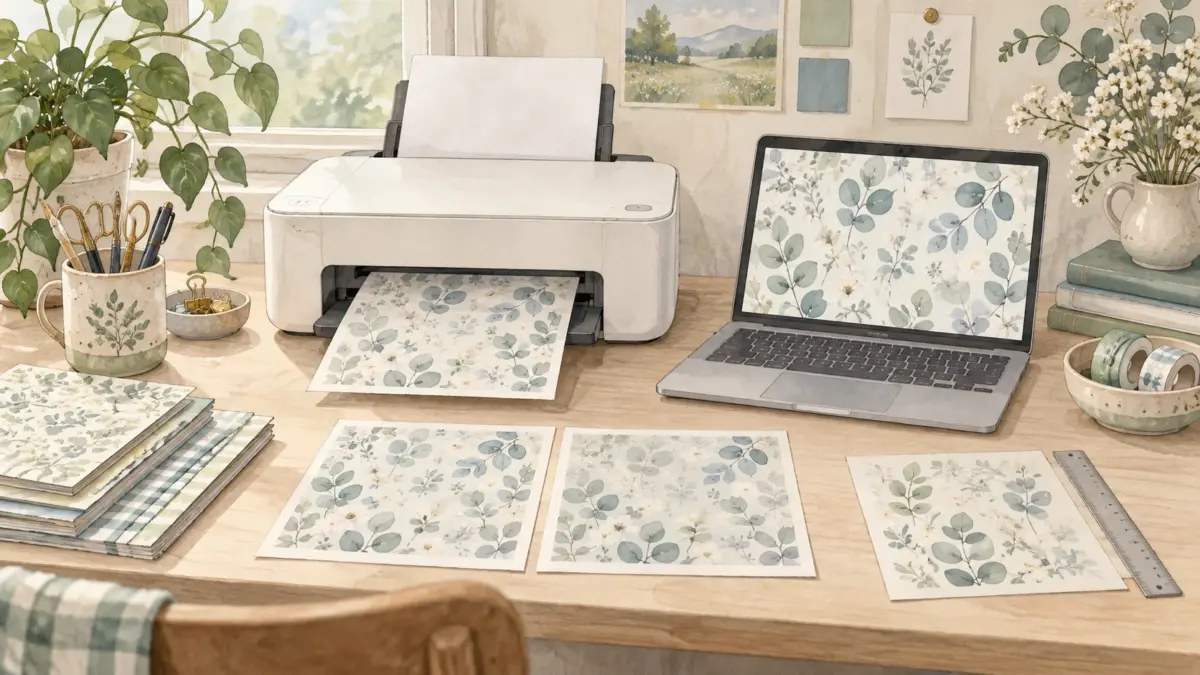
Header image: AI-generated illustration of a home paper-printing workspace, not a physical print test. The patterns shown are illustrative.
Quick plan
- Confirm the file finished downloading.
- Open the original rather than a messaging preview.
- Check pixel dimensions.
- Set actual size or the intended scale.
- Select the correct paper and media type.
- Print a small test crop.
Before printing a batch: select pages and copies
Start with the pieces your project needs: a full background, a photo mat, or a narrow journaling strip. Check usable leftovers before printing another sheet. Keep the original download unchanged if you crop a separate working copy for a smaller piece.
Use the page numbers shown in the original PDF to print only the sheets your project needs. Check the thumbnails against the cover or page labels first; a PDF page number may differ from a design’s name.
- Select the pages. In Chrome or Edge, open Print and change Pages from All to Custom. In Acrobat Reader, go to Pages to Print and choose Pages. Enter 2 for one page or 2,5-7 for pages 2, 5, 6, and 7. Controls can vary by version.
- Print one proof. Select just one page and set Copies to 1. Check paper size, scale, and the preview before printing. Check the proof before printing the remaining selection.
- Print the remaining pages. Enter the page range you want, review the preview and copy count, then send the rest of the job. Keep the original PDF unchanged.
For browser-specific screenshots and controls, see Avery’s PDF page-selection guide.
When the pattern prints too large or small
Look for “fit,” “fill,” “actual size,” and percentage controls. Fit places the whole image inside the printable area; fill may crop edges; actual size preserves intended inches when metadata and software agree. A custom percentage deliberately changes motif scale.
When a print looks too dark or colors differ
A display emits light while paper reflects it, so printed color will not exactly match every screen. Printer, ink, paper and settings also affect the result. Compare at a comfortable, consistent monitor brightness; there is no universal brightness percentage. If a print looks unexpectedly dark, check the print path before editing the downloaded artwork.
- Confirm that the print dialog matches the paper you loaded and that color printing, rather than grayscale or black-only, is selected. Menu names vary by model. Epson’s WF-7310 color troubleshooting guide gives these checks for that printer and lists conditional nozzle and ink checks when colors are incorrect. Follow your own printer’s manual.
- If you print from Adobe Photoshop, choose one color-management path. With a custom profile for the exact printer, ink and paper, Adobe says to let Photoshop manage colors and turn off printer-driver color management. Without a matching custom profile, let the printer manage colors. See Adobe’s Photoshop color-management guide; other apps and drivers may use different controls.
Keep the original download unchanged. Converting every file to a generic CMYK profile is not a universal fix; follow the color workflow for the app and printer you actually use. When troubleshooting, change one setting at a time and use a small proof before printing a full sheet. For inkjet prints, follow the printer or paper maker’s guidance on drying before comparing. Check paper and color settings before editing file brightness. Results vary by printer and paper; no single profile or percentage guarantees an exact screen-to-print match.
When ink smears before or after gluing
First check when the smudge appears. If ink marks the sheet before you add adhesive, confirm the printable side and match the print dialog’s media setting to the paper. Follow your printer manual for drying before reloading a sheet or printing its other side. Epson’s smeared-print checklist includes these checks; available controls vary by model. Try another small print before changing the artwork.
If the print looks clean until assembly, keep one spare piece uncoated and try your planned adhesive on another. Follow that product’s directions and compare the pieces after drying. This helps you identify whether the marks begin during printing or gluing. For example, Plaid’s Mod Podge Paper instructions call for thin coats and smoothing from the center outward. That guidance does not establish compatibility with every inkjet print. Check the exact formula’s instructions before coating a finished page.
To keep adhesive off the printed area, consider a pocket or photo corners instead. Check the mounted page’s fit and how it turns in the album before repeating the layout.
When details look soft or striped
Soft or fuzzy details and repeated bands call for different checks. For soft detail, confirm that you opened the original full-resolution file, then compare its pixel dimensions with your planned print size using the print-size calculator. A higher print-quality setting cannot restore detail missing from the source image.
If an inkjet print has repeated white or dark bands, start with your printer model’s nozzle-check instructions. Follow the results and clean only if necessary, as directed in that model’s manual. For the Epson WF-7210, see Epson’s WF-7210 banding checklist: match the paper type, load the printable side correctly, turn off high-speed printing, and check alignment. Make one change at a time and print a small proof.
If the back of a junk journal page prints upside down, or the two-sided option is missing, start with the double-sided printing checks in our vintage journal guide. That section covers a one-sheet test, page order, and printer-specific reloading.
Use this as a mini worksheet
- Original file
- Correct page size
- Correct scale
- Correct media setting
- Nozzle check
- Small test print
Collections to explore
These ScrapBujo collections match the palette or project described above. The collection page explains the included designs and links to Etsy for current US pricing and promotions.
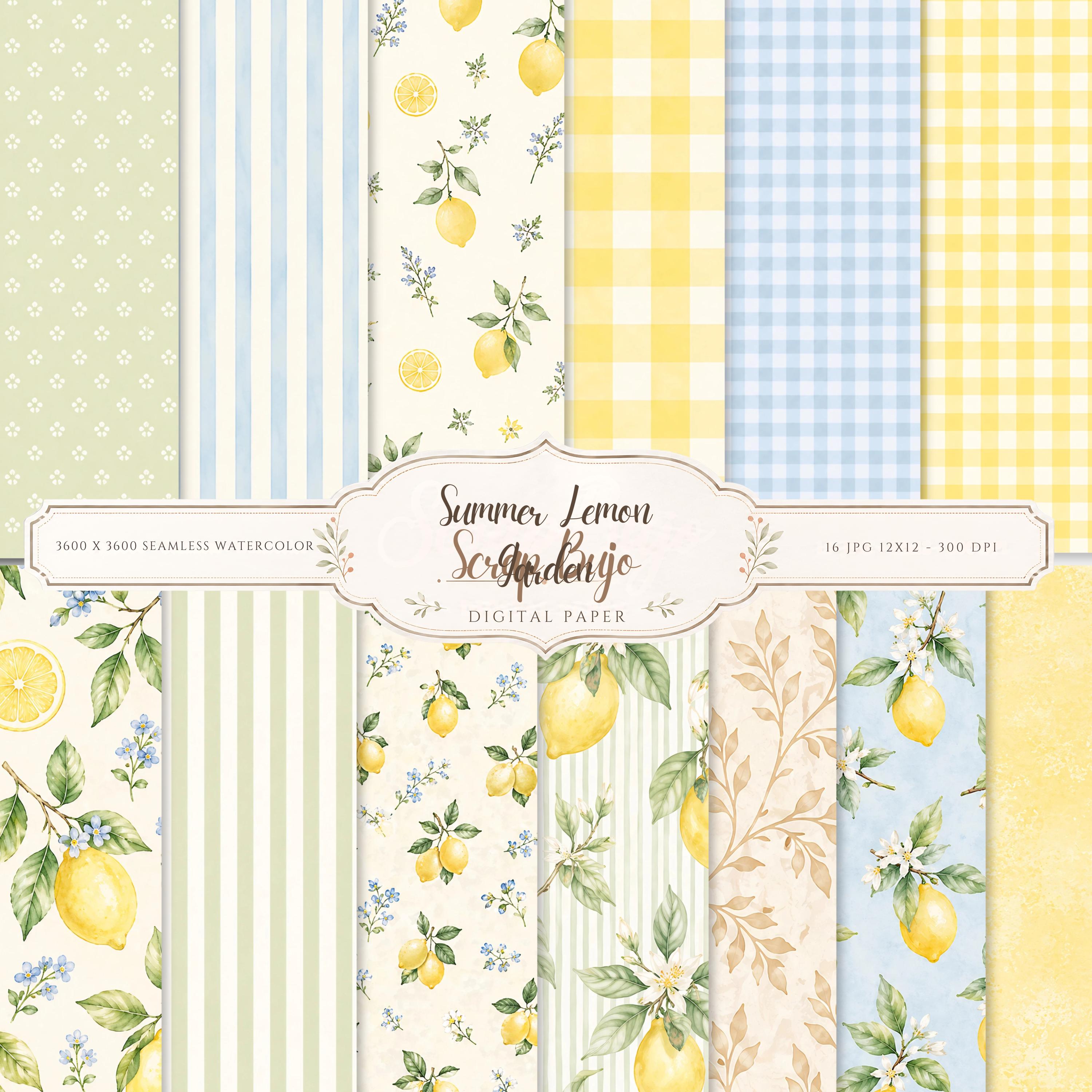
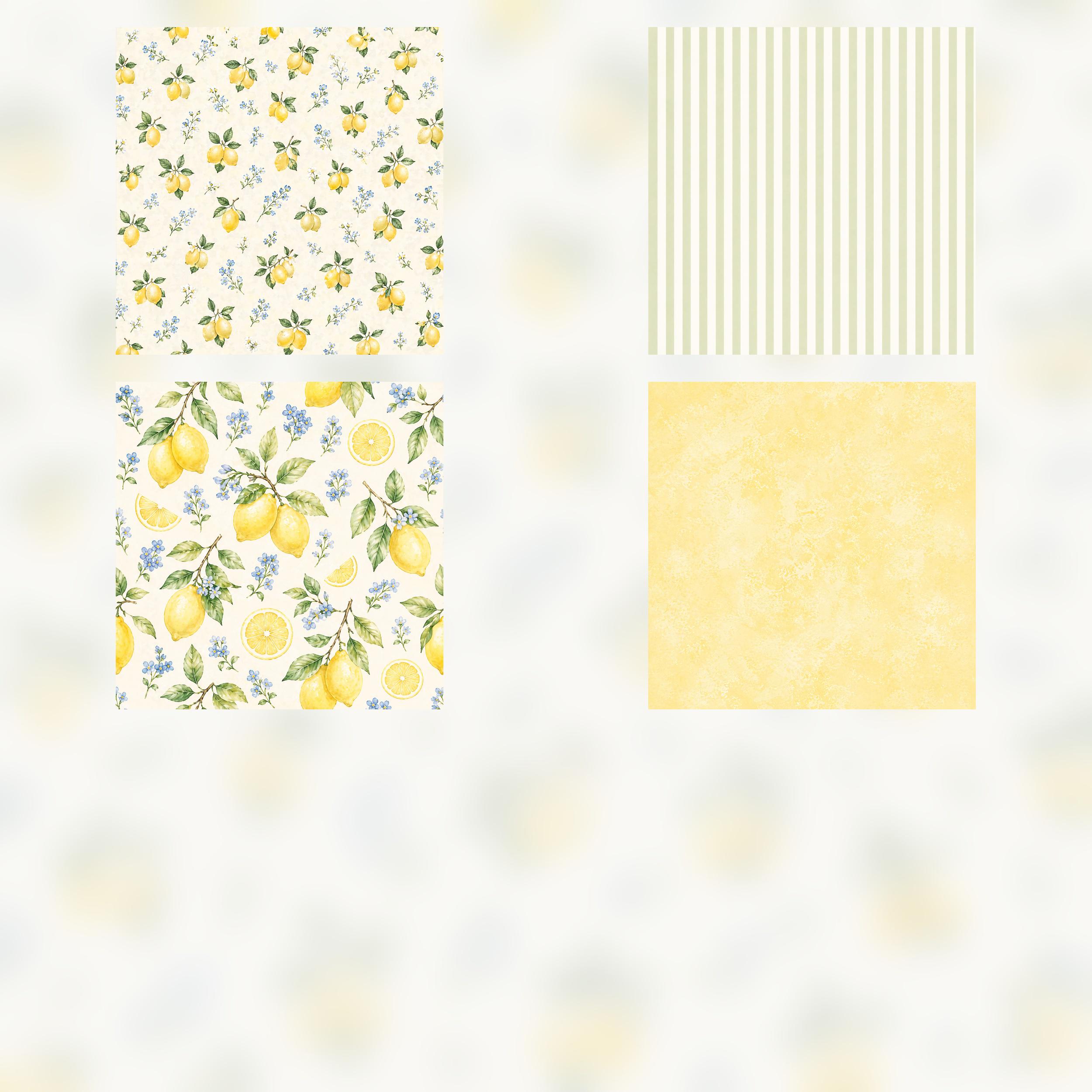
- Watercolor Lemon Digital Paper Pack
Add a fresh and elegant summer touch to your projects with this beautiful lemon-themed digital paper pack.
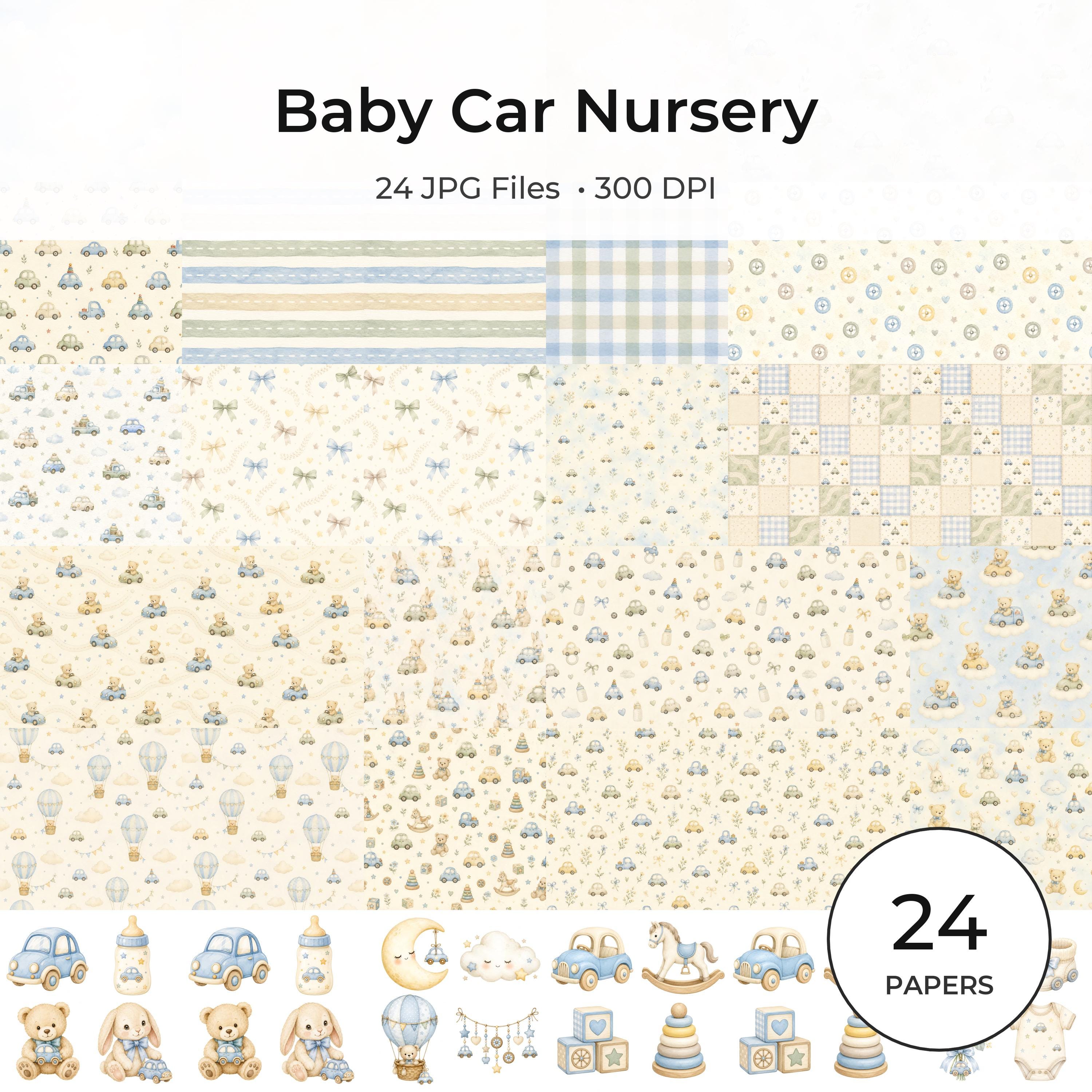
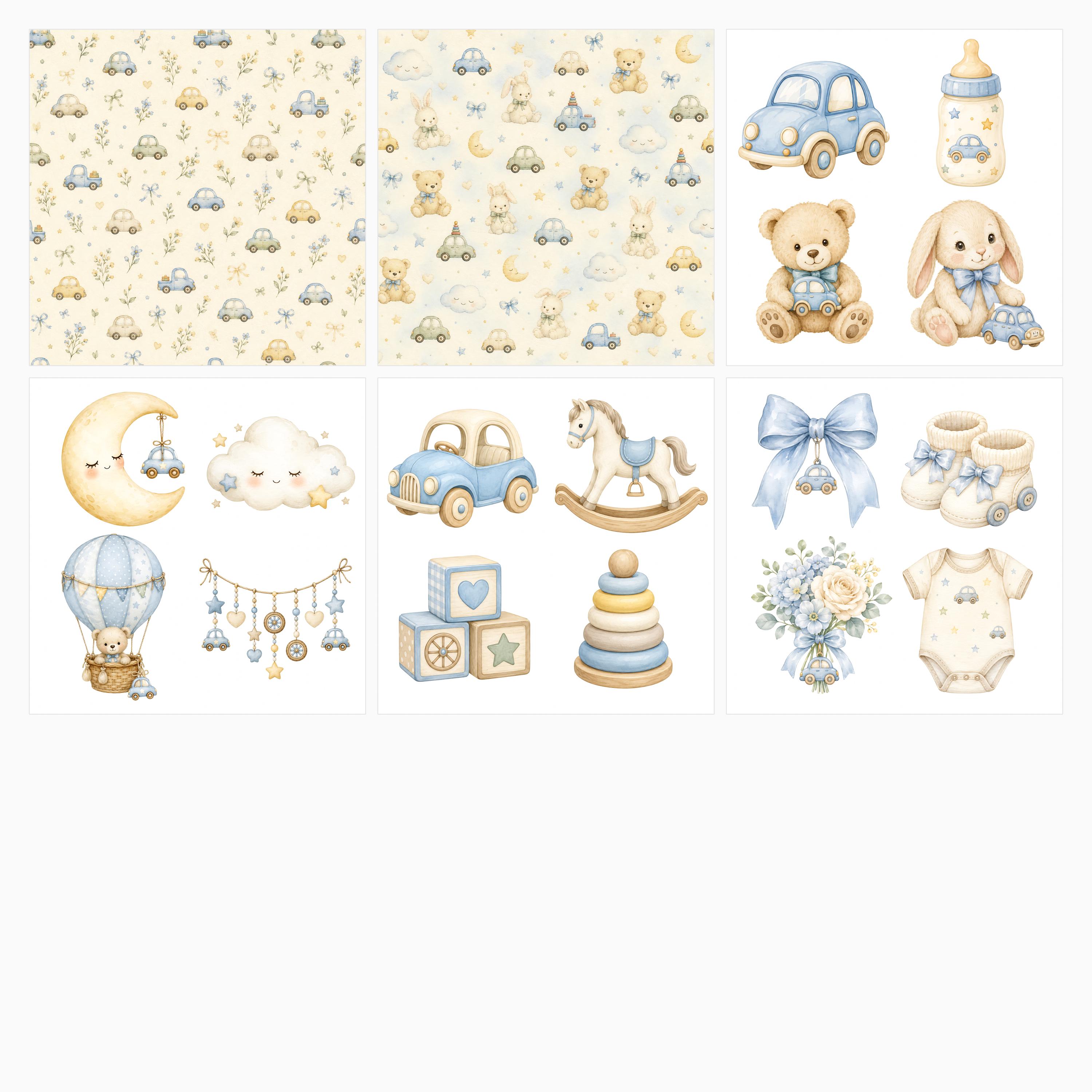
View the collection details - Watercolor Baby Car Nursery Digital Paper Pack, Toy Cars,
Baby Car Nursery Digital Paper Pack – Watercolor Toy Car Scrapbook Papers & Die Cut Sheets.
View the collection details - Golden Angel Nursery Papers, Watercolor Baby Angel Die Cuts
Golden Angel digital scrapbook bundle featuring soft watercolor angel nursery papers, warm golden angel wings, heavenly clouds, tiny halos, stars, ribbons, florals.
View the collection details · Try the free printable samples - Baby Bear Astronaut Watercolor Papers, Nursery Space Theme
Create sweet baby albums, nursery crafts, baby shower stationery and scrapbook projects with this soft watercolor Baby Bear Astronaut digital paper collection.
View the collection details · Try the free printable samples - Baby Safari Scrapbook Paper Bundle
This is a complete Baby Summer Safari Scrapbook digital bundle designed for crafting, scrapbooking, junk journals, planners, invitations, and printable projects.
View the collection details
Frequently asked questions
Why is there a white edge?
Many printers cannot print borderless on every paper size. Trim the edge, use a supported borderless size, or print through a service.
How do I confirm effective resolution?
Use the free ScrapBujo DPI calculator with the pixel dimensions and planned print size.
Source note: The collection facts and preview images in this article were checked against the ScrapBujo catalog on 2026-08-14. The examples are product previews; they do not replace a print test.
Collection previews used in this guide
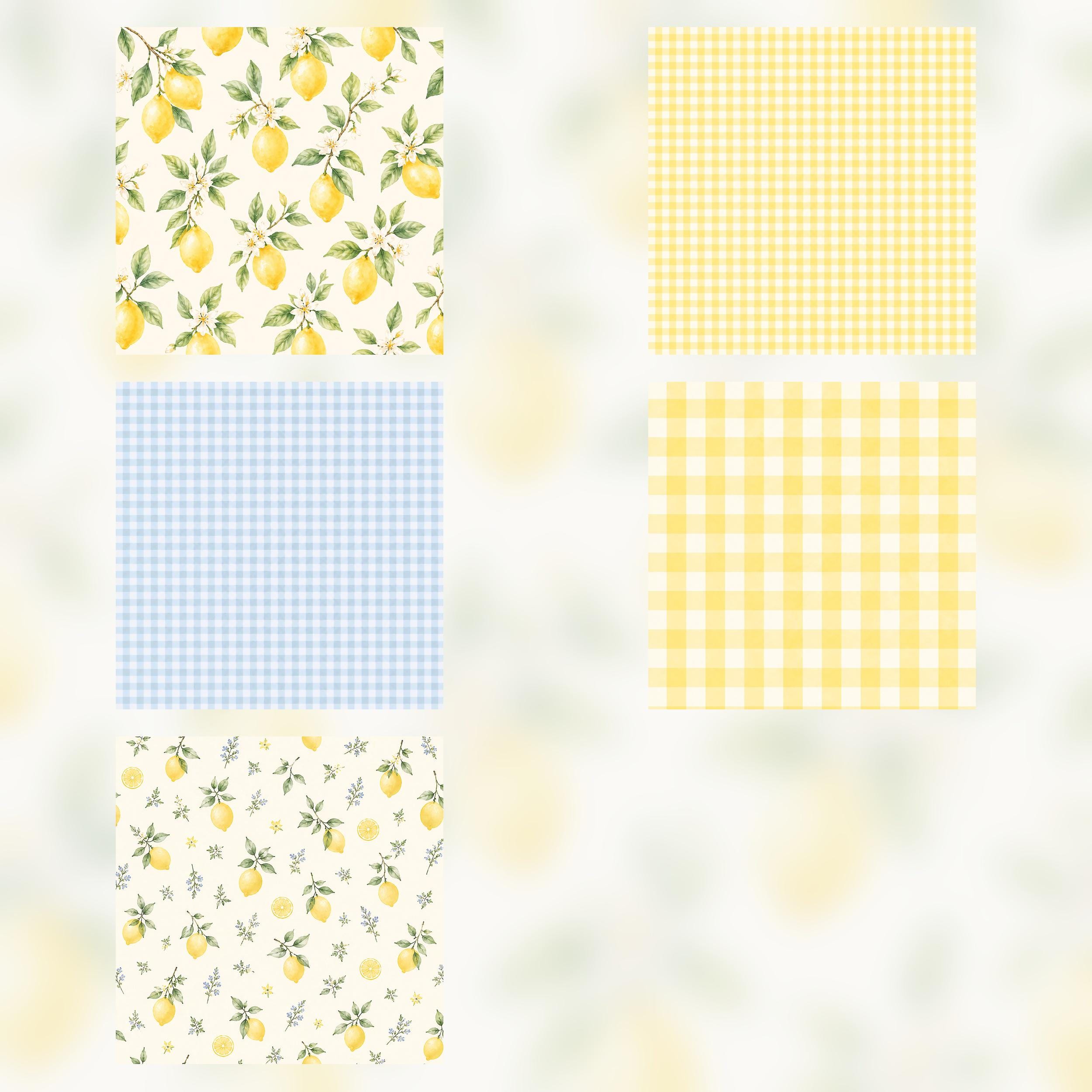
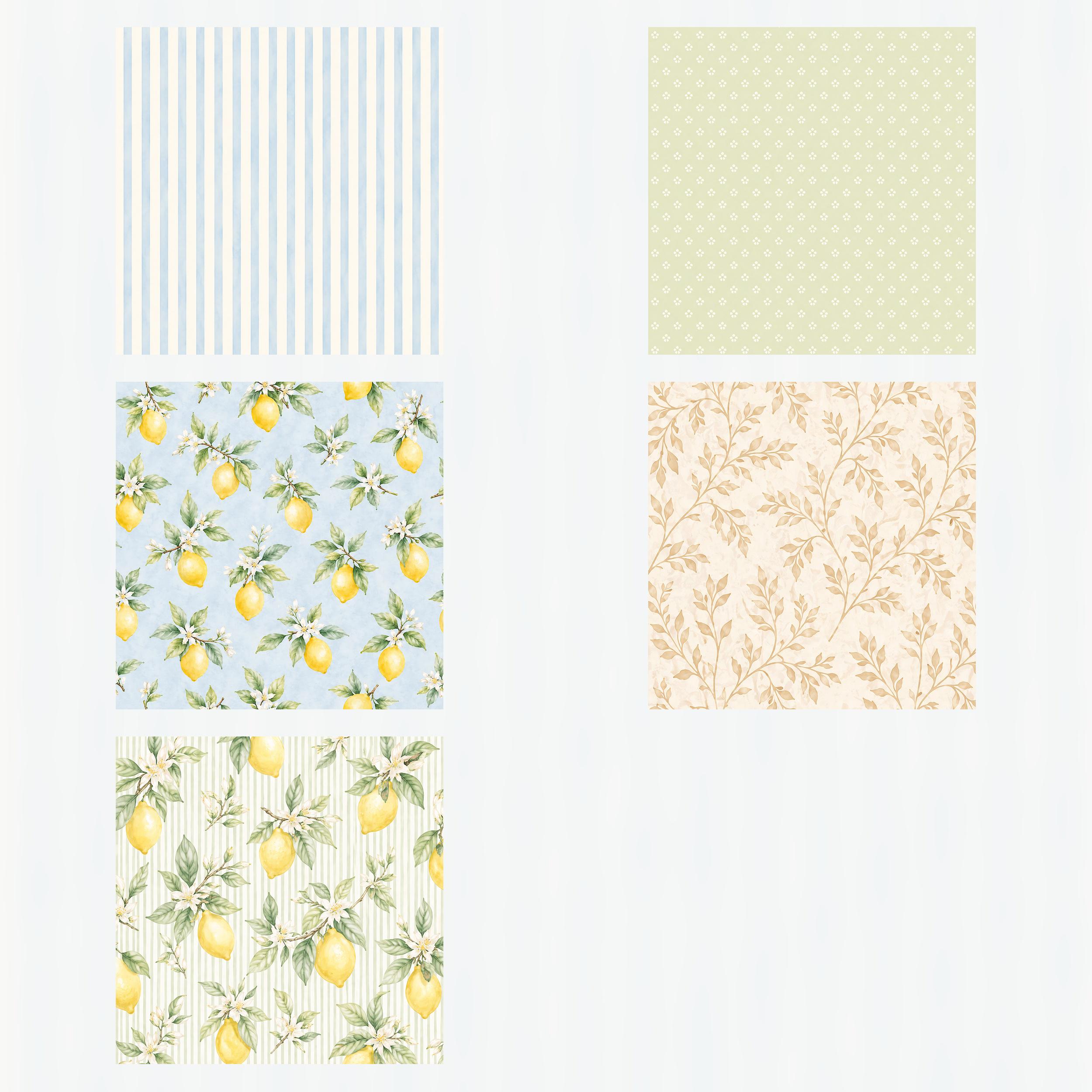
These are current ScrapBujo collection previews, not substitute artwork. They show the paper surfaces and formats discussed below.
Explore ScrapBujo digital collections
Digital paper collections for your next project
Explore coordinated digital collections on ScrapBujo, compare formats, and follow the checkout shown for the product you choose.

12×12 in 300 DPI Digital download
Digital Scrapbook Papers · Seasonal & Holidays
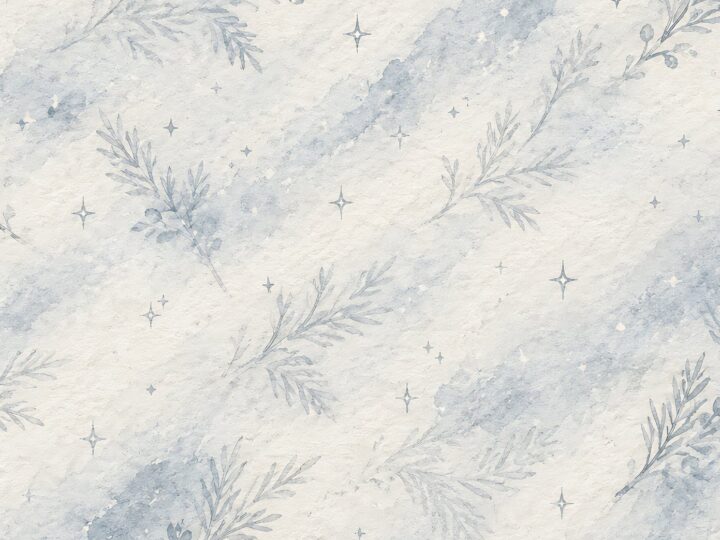
Aurora Ribbon Christmas: 40 Abstract Scrapbook Papers
40 coordinated abstract Christmas and winter scrapbook papers in 12 × 12 inch…
12×12 in 300 DPI Digital download
Digital Scrapbook Papers
Alpine Knit Winter — 40 Digital Scrapbook Paper Designs
40 alpine winter paper designs in 12 × 12 inch and US Letter…
12×12 in 300 DPI Digital download
Digital Scrapbook Papers
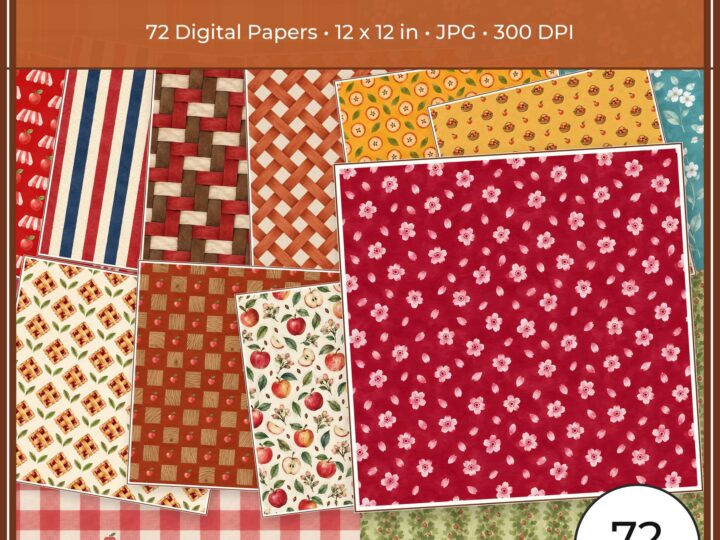
Apple Orchard & Cider Harvest Digital Papers
Build an apple-picking scrapbook page, journal entry or recipe card with 72 square…
Each product page identifies its checkout, current price, and digital delivery details.