
Vintage Printable Junk Journal Pages: A Beginner’s Guide
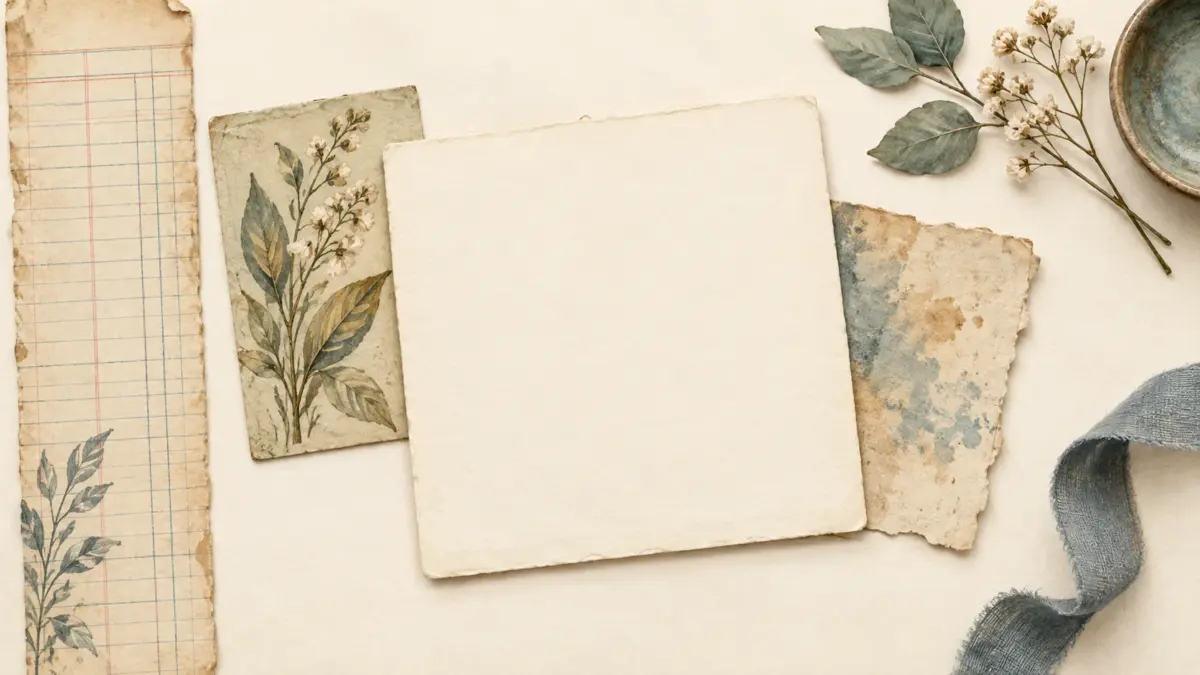
A vintage junk journal page works best when a few aged-looking details leave room for the memory and the writing. If this is your first page, choose one printable, one thing you want to remember, and a simple order for placing them before you use adhesive.
About the featured image: This AI-generated illustration shows one possible page arrangement; the pieces shown are a visual example, not files included in a collection.
Start with one memory and one printable
Pick a small subject for the page: a recipe you want to keep, a place you visited, a book you finished, or an ordinary moment worth recording. Write a short caption or note first. That gives the page a purpose and helps you see how much space the words need.
Next, decide what job the printable will do. A quiet ledger, faded handwriting, botanical stain, or soft wash can sit behind writing. A busier motif can work as a narrow strip, corner, label backing, or small focal layer. You do not need to cover the whole page with pattern for it to feel coordinated.
Choose a full-page base or a smaller layer
Use a printable as the full base when its texture leaves a calm area for your note. If the design feels busy, trim a copy into a border or a few smaller pieces and keep a plainer area beneath the writing. Check the dimensions and format of the specific file before choosing a print size; not every collection has the same page formats.
| Use it as a full page | Use it as a smaller layer |
|---|---|
| Choose a quieter design, or one with an open area where your note can sit clearly. | Choose a busier motif, or when you want one border, corner, label backing, or focal accent. |
| Let the page carry the mood and keep the added decoration simple. | Keep the writing area separate; add one or two cut pieces around it. |
For a first page, a useful starting group is one patterned base or strip, one small focal element, and one place for the date or caption. Add physical material only if it helps the story: a piece of thread, a plain paper label, or a saved ticket can add a different texture. A flat paper version works just as well when you want less bulk.
Place the layers in a readable order
- Set the writing area first. Keep the note where it will remain easy to read.
- Place the printable around that area as a base, border, or small accent.
- Add one focal item, such as a photo, a label, or a meaningful keepsake.
- Set the date or short caption beside the focal item, then pause before adding anything else.
Move the pieces around before attaching them. If the focal item and the writing compete, remove one decorative layer or shift it to the edge. A page can feel finished while it still has open space; the point is to make the memory readable, not to use every available scrap.
A simple first-page example
For a recipe memory, the page could use a faded ledger as a narrow border, a recipe card as the main focal piece, and a short note about when the recipe was made. Leave a clear area for the date and any details you want to add. This is a planning example, not a supplied layout or a photograph of a finished project; change the pieces to fit your own story.
If you want a seasonal next step, see these 12 fall junk journal page plans for photos, notes, and keepsakes.
Mix printed and physical texture
Digital texture provides color and detail; a physical material can add its own surface and shadow. If you use both, let one printed paper carry most of the pattern and choose just one or two physical details, such as torn book paper, cotton thread, tracing paper, a paper doily, or a folded envelope. Keeping the materials together in one small area helps the page stay readable.
Print both sides without losing page order
For a two-sided journal insert, confirm both faces of the paper are printable and check that your exact printer supports duplex on the paper size and stock you plan to use. The page order and the way the reverse side turns depend on the layout and binding; a short-edge setting is not right for every project. Adobe’s current guides explain the duplex controls and manual feed direction for specific workflows (print on both sides; manual duplex, face down).
- Before printing a batch, use one sheet of the supported paper.
- Check the document’s page order and print preview, then follow your printer’s duplex prompt or model-specific manual for how to reload the sheet.
- For manual refeeding, allow ink to dry as directed by the paper or ink maker before reloading.
- Fold the test as it will sit in the journal and check that both sides are upright, in the intended order, and aligned well enough for your design.
A quiet reverse side with open space around the fold makes small alignment differences less distracting. If the automatic duplex option is missing, check the printer settings and exact model manual. Use manual duplex only when the manual supports refeeding that paper and stock; if neither automatic nor manual duplex is supported, or the project is designed for one-sided pages, print one-sided. Printer labels and feed directions vary by model, so do not rely on a universal odd/even or flip-edge recipe.
Use the test sheet to pinpoint the problem
- The back is upside down: Fold the sheet in the direction it will turn in your journal. Check the layout or binding direction, then use your printer’s model-specific duplex or reload instructions.
- The back shows the wrong page: Compare the page pair in the print preview with the spread you want. For manual duplex, check the supported page sequence and whether the sheet should be face up or face down.
- The right pages are upright but shifted: Check that both sides use the same paper size and scaling, then compare the preview and page placement. Small position differences can remain; keep important writing away from cut edges and folds.
Create pockets with purpose
A pocket can hold a journal card, photograph, recipe, ticket, or private note. Before attaching one, place the intended insert beside the page and make sure the pocket will leave enough room for your writing and other layers. A flat label or card beside the pocket is an option if you want to keep the spread thinner.
Keep the aging effect selective
Use darker color near an edge or fold and leave the center lighter when you want the writing to stand out. If you add ink, follow the ink maker’s directions and try it on a spare piece before using it on a page you want to keep. Several equally strong brown layers can make small text harder to read.
Build a small focal cluster
Try three different roles in one cluster: a torn paper shape, a botanical or label, and a smaller detail such as a stamp or thread. Overlap them slightly, then repeat only what helps connect the page. For more consistent color, browse a vintage or cottagecore collection and bring in your own materials. The guide to choosing a useful digital paper pack explains what to check before buying.
Protect space for the story
Before you finish, check that the writing still has contrast and that the page has one clear focal area. Remove a layer if it covers an important part of the photo, makes the caption difficult to read, or leaves no calm place to write. Decoration can frame a memory, but the words and keepsake are what make the page yours.
If your file is 12 × 12 inches and you plan to print on Letter or A4, see the 12 × 12 printing guide for Letter or A4 for size-specific options. To compare a product’s actual files and formats, open its collection details; to look for a low-commitment sample, start at Free Downloads.
Explore ScrapBujo digital collections
Vintage textures and botanical papers for junk journals
Explore coordinated digital collections on ScrapBujo, compare formats, and follow the checkout shown for the product you choose.
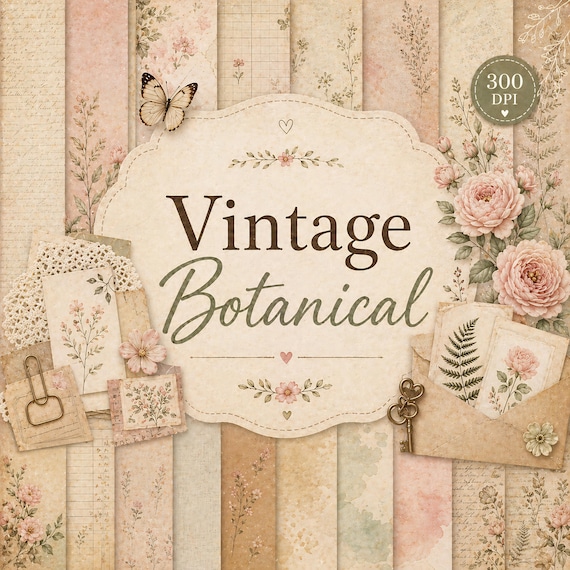
12×12 in 300 DPI Digital download
Coloring & Printables · Floral & Botanical
Vintage Botanical Digital Paper Pack
Create beautiful scrapbook pages, junk journals, planners, cards, and printable crafts with this…
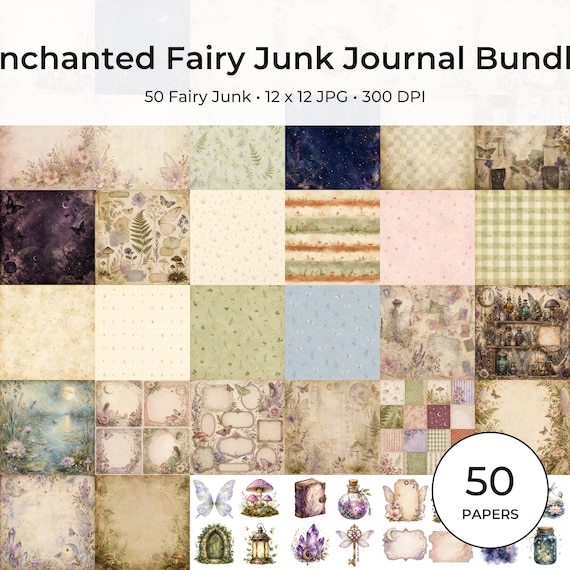
12×12 in 300 DPI Digital download
Coloring & Printables · Floral & Botanical
Fairy Junk Journal Papers, Vintage Botanical Digital Bundle (12×12
Create magical junk journals, scrapbook layouts, tags, cards and printable crafts with this…
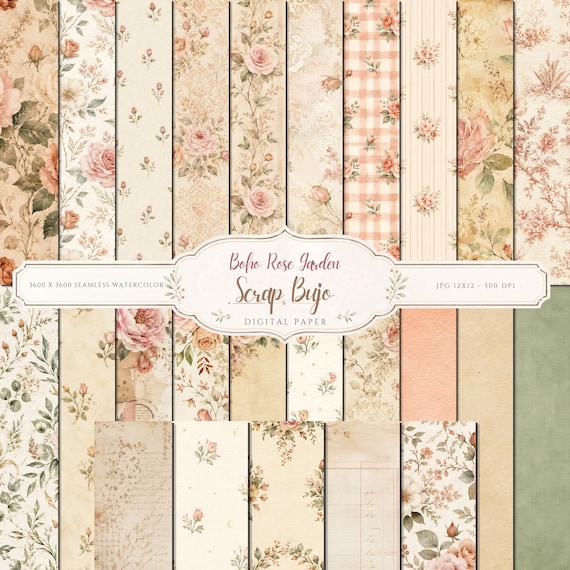
12×12 in 300 DPI Digital download
Coloring & Printables · Floral & Botanical
Boho Rose Garden Digital Paper Pack
25 vintage rose paper designs as 3600 × 3600 JPGs, plus four 10…
Each product page identifies its checkout, current price, and digital delivery details.