
How to Choose a Digital Paper Pack: A Practical Checklist

Choose digital scrapbook paper for the page you plan to make. Check the preview at full size, confirm the actual file dimensions and format, and decide whether the collection gives you enough useful variety for that project.
Digital scrapbook paper is a patterned or textured image file used as a background in a digital layout or printed for a physical project. It is not automatically an editable template; check the exact listing for file types, dimensions, and use terms.
The header is an illustration; the collection images below are product previews.
A large file count does not automatically make a pack a good fit. A focused set of coordinated backgrounds can be easier to use than a larger set whose colors, scale, or subject compete with your photos and writing. This checklist helps you compare the paper itself before you buy.
Start with one specific project
Write down what you are making: for example, a 12 × 12 scrapbook layout, a US Letter journal page, a card, or a digital planner spread. Then decide whether you need a quiet background for photos and journaling, a noticeable pattern for a title page, or a mix of both. This gives you a practical way to judge a preview instead of choosing by file count alone.
For a planning example, imagine a baby scrapbook page with one photo and a short story. A busy all-over print may compete with both; a calmer background can leave more room around them. If you still want the busy design, consider using a small strip or photo mat when it fits the layout. This is a hypothetical design choice, not a physical print test or a claim about any pack’s contents.
Read the preview for scale and contrast
Look at the full-size listing images, not only a small collage or thumbnail. Ask:
- Can you still see the pattern clearly at the size you plan to use?
- Would text, a photograph, or a focal embellishment remain easy to read over it?
- Do the colors work with the photos or supplies you already have?
- Does the pack include both calmer backgrounds and stronger patterns, if your project needs both?
Zooming into a preview can help reveal texture and detail, but a listing preview is still a representation of the digital artwork. Screen color, printer, ink, paper, and print settings can change the result. Do not treat a preview as proof of a physical print test.
Match the file dimensions to the finished page
Check the listed pixel dimensions and intended page size. Pixels describe the digital image; inches describe a print size only when a print resolution is specified. For example, a 3600 × 3600 pixel image printed at 300 pixels per inch (PPI) measures 12 × 12 inches before printer margins or scaling. A resolution label alone does not add detail to an image or guarantee a particular printer result.
For a US project, compare the listing with US Letter (8.5 × 11 inches) if your printer accepts that size. In Canada, the United States, or elsewhere, use the page size your printer or print service accepts; if you work with A4, check for 210 × 297 mm dimensions. A square 12 × 12 design will not fit at full size on one US Letter sheet: printing software may shrink it, crop it, or tile it. Choose the trade-off before buying, and use the print-size guide and calculator to compare pixel dimensions with a planned print size.
Confirm the file format and what it lets you do
JPG and PNG are image formats. A JPG may suit a finished paper background; a PNG can support transparency when the file actually contains transparent areas. Neither format means the artwork is an editable template. Check the listing for the exact formats and whether files are supplied individually or inside ZIP folders. For a quick explanation of JPG, PNG, and PDF, read our digital scrapbooking file-format guide. Open a sample or preview when the seller provides one and your intended app supports it.
Compare useful variety, not just quantity
Count the designs that work for your project, not only the total files advertised. Look for a balance that fits how you scrapbook: related colors or motifs can make a coordinated page easier, while a few contrasting designs can help separate a title, photo area, and journaling. If every preview seems equally busy, or several designs look too similar for your needs, a different pack may be a better fit.
After choosing a mix, use our guide to layering digital scrapbook papers without visual clutter to combine a quiet background, supporting pattern, focal photograph or journal block, and small accents.
Check the listing details before checkout
Confirm the delivered file count, dimensions, format, download method, and license or usage terms on the current product listing. Digital listings can change, and marketplace pricing, availability, taxes, and promotions can vary; use the listing itself for current details. A digital download is not a shipment of physical paper. Read how Etsy digital downloads work if you want to know what to expect after purchase.
A quick comparison checklist
- Project: I know the page or craft I want to make.
- Preview: The visible scale, contrast, and palette suit that project.
- Size: The stated pixel dimensions and page format fit my print or digital workflow.
- Format: I know which file types are included and whether I need editable or transparent artwork.
- Variety: The designs offer enough useful differences without relying on the total count alone.
- Terms: I checked the current listing for included files, download details, and permitted uses.
For the separate question of which files and items a collection includes, use our digital scrapbook collection contents guide. This page focuses on deciding whether the paper suits one intended project.
When comparing options, place the previews side by side and score only the factors your project needs: size, visual fit, format, and usable variety. The best choice is the pack whose verified listing details and visible papers match your plan.
Collection previews used in this guide
These collection previews show examples of the digital paper artwork. They are not physical print samples; appearance can vary by screen and print setup.


Juan’s ScrapBujo Design Team
Advice and questions
Ask a follow-up or share what you are trying to make. Replies appear after moderation.
Ask a question or reply
Explore ScrapBujo digital collections
Digital paper collections for your next project
Explore coordinated digital collections on ScrapBujo, compare formats, and follow the checkout shown for the product you choose.
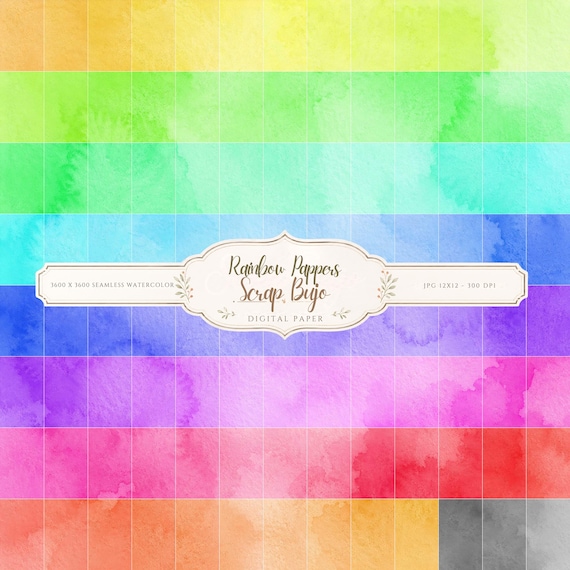
12×12 in 300 DPI Digital download
Coloring & Printables · Pastel & Watercolor
Pastel Watercolor Digital Paper Pack, Soft Rainbow Colors, Scrapbook
Bring soft color and handmade texture to your creative projects with this Pastel…
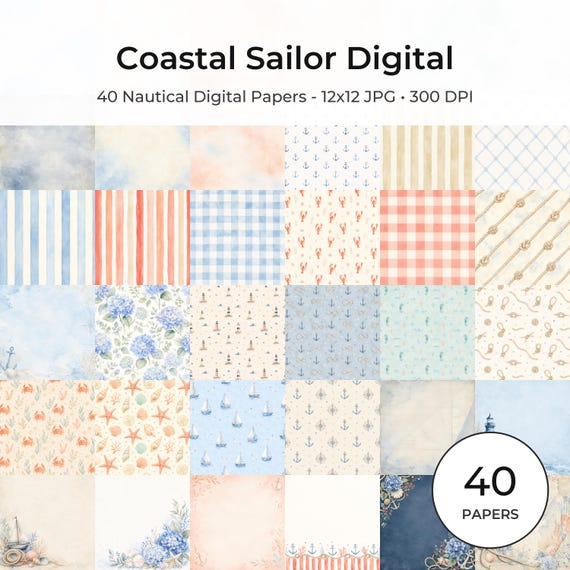
12×12 in 300 DPI Digital download
Coastal & Summer · Pastel & Watercolor
Nautical Digital Paper Pack, Watercolor Coastal Scrapbook Pages (12×12
Bring a fresh coastal touch to your creative projects with this nautical digital…
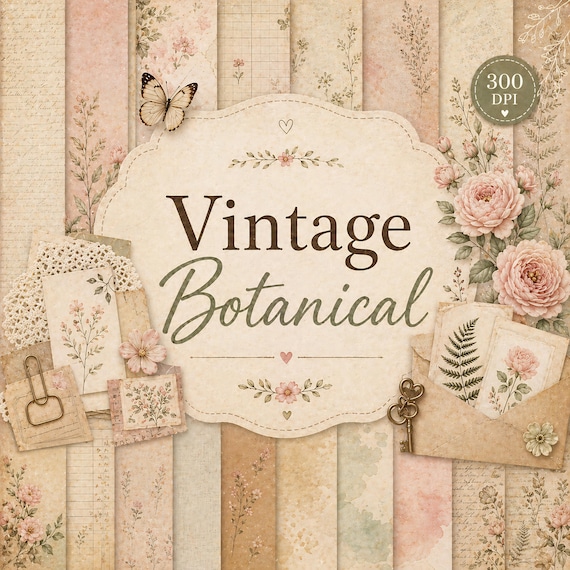
12×12 in 300 DPI Digital download
Coloring & Printables · Floral & Botanical
Vintage Botanical Digital Paper Pack
Create beautiful scrapbook pages, junk journals, planners, cards, and printable crafts with this…
Each product page identifies its checkout, current price, and digital delivery details.
ScrapBujo DT advice
Check the pack against the project
A large file count is less useful than the right size, format and coordinated variety. Before choosing a pack, decide whether you need full backgrounds, smaller cards or transparent elements, then check the actual included files and license. A free sample can help you test the print workflow.
Browse 12×12 digital papers