
Why Is the Border on My Printable PDF Cropped?
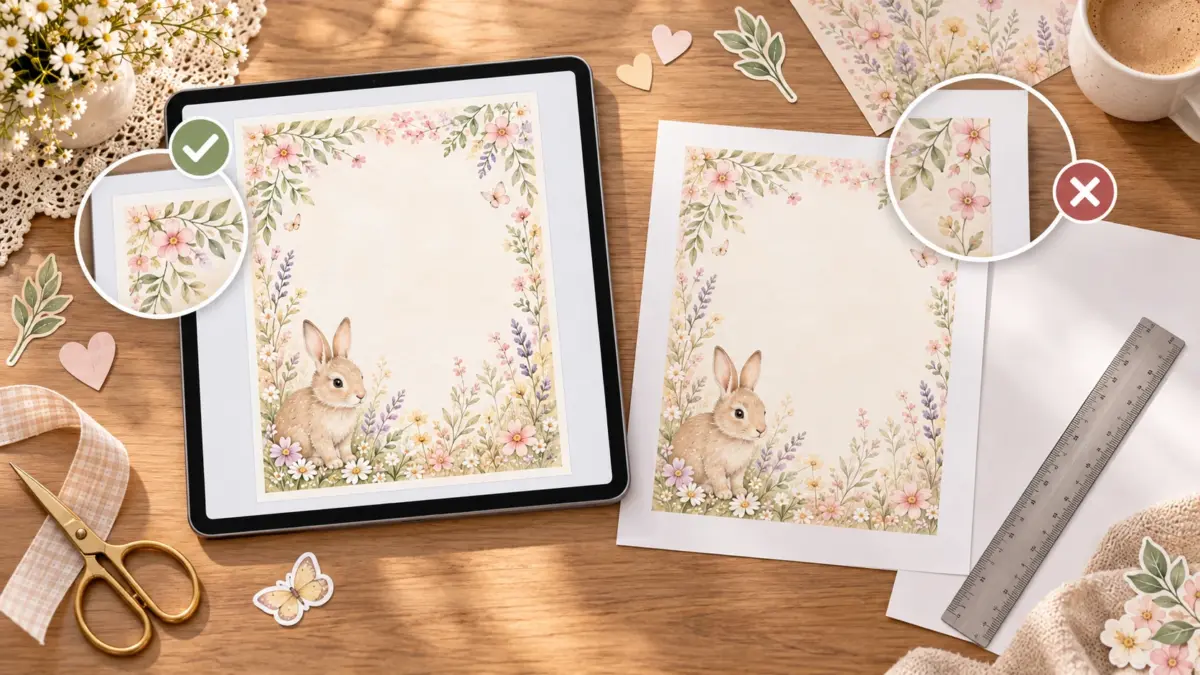
When a border on a printable PDF disappears in the physical print, compare the PDF preview with the paper before changing settings. If the preview is already cropped, the document or selected page size is the likely issue. If the preview shows the full border but the print does not, check scaling and the printer’s printable area. One plain-paper test can tell you which part of the workflow needs attention.
This guide diagnoses a cropped PDF border. For a broader explanation of when to choose borderless, Actual Size or Fit, continue to the ScrapBujo guide to borderless printing and Actual Size. The right setting depends on whether the page must preserve exact dimensions, show the whole design or reach the edge.
Compare preview and print
Open the PDF in the application you normally print from and inspect all four edges. Does the border disappear in the on-screen print preview? If so, note the page size, orientation and scaling shown there. A preview that crops the same edge as the print suggests the document is being fitted, filled or cropped before it reaches the printer.
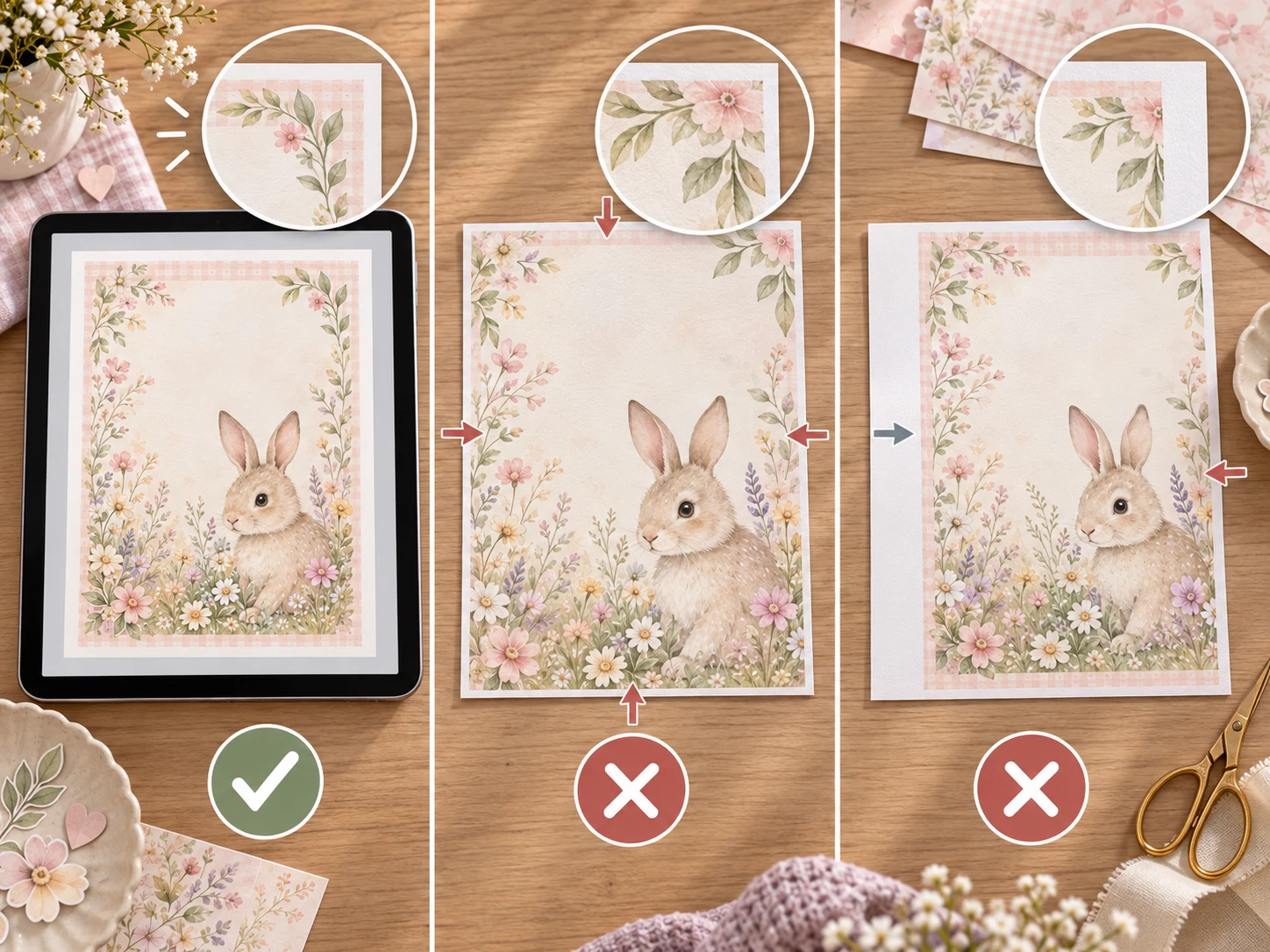
If the preview includes the whole border but the paper does not, the printer may be unable to print in that narrow edge area, or a driver setting may enlarge the page. Look for a consistent strip missing on every side versus one uneven side. A uniform white edge is often a nonprintable margin. Uneven clipping may point to paper placement, feed alignment or a size mismatch.
Do not infer the cause from the page appearance alone. The PDF, viewing application, selected printer and printer driver all affect what the preview represents. Preserve the original file while troubleshooting so you can compare new tests against it.
Check the page and paper sizes
Confirm the paper size loaded in the printer, then compare it with the PDF page size. US Letter is 8.5 × 11 inches. A4 is 210 × 297 mm. They are close in area but have different proportions, so printing an A4 page on Letter or the reverse can change margins or scale. Use a matching file size when the download provides one; verify the exact product’s options rather than assuming both are included.
Check portrait versus landscape orientation as well. If the printable is landscape but the driver treats the page as portrait, the application may rotate or fit the design unexpectedly. The preview should show the intended orientation before you print.
If a square PDF does not fit within the printable area of your Letter or A4 sheet—such as a 12 × 12-inch page—it cannot print at full size on one sheet. Reduce it, deliberately crop it, or tile it; a smaller square may already fit. See the guide to printing 12 × 12 paper on Letter or A4 without distortion for that specific shape mismatch.
Check scale only after matching sizes
Print options may include Actual Size, 100%, Fit, Fill or borderless. Names vary by application and printer model. Actual Size preserves the PDF’s physical dimensions but cannot force a printer to put ink beyond its printable area. Fit changes scale to keep the whole page within the available area. A borderless mode may expand the artwork and trim its outer edge.
Use the print preview to check what the selected option does to the border. Change one setting at a time. If you need to keep the full page, Fit may produce a slightly smaller result or wider white margin. If the border itself must reach the paper edge, borderless printing may be available only for specific paper sizes and media, and some edge crop may remain. Consult your printer’s current manual for its supported options.
Avoid choosing Fill just to remove a white margin when the border or text is close to the edge. Filling the sheet may enlarge the PDF and crop the very element you want to preserve. For scrapbook paper, a small edge loss on a repeating background may be acceptable; a frame, label or measured pocket needs more care.
Check the printer’s printable area and paper feed
Many home printers leave a margin where they cannot apply ink. The width of that area depends on the printer, paper size and selected media. If the same thin border is missing on all sides, inspect the specifications for printable area or borderless support. Do not assume that a printer supports borderless output for every paper type.
If one side is more heavily clipped than the others, check that the paper guide is snug against the sheet and that the paper is loaded squarely. Do not force the page through. Try one new test sheet, keeping the same PDF and scale settings, and note whether the cut shifts. If it does, paper feed or alignment may be contributing.
For a decorative page, trimming the sheet slightly smaller and mounting it on a plain mat can turn a printer margin into a deliberate frame. For a border that needs to remain visible, use an inset design with more margin or choose a supported paper-size and print method. There is no universal borderless setting that applies to every printer.
A one-page diagnostic routine
- Save a copy of the PDF and note its stated page size.
- Check the paper size and orientation loaded in the printer.
- Compare the document preview with the print preview.
- Print one proof on plain paper using a single scaling choice.
- Mark which edges are missing and whether the crop is even.
- Change one setting or correct one mismatch, then print a second proof.
This test is about locating the crop, not evaluating final color or specialty-paper performance. Once the border fits, you can choose the final stock and make another small proof if its thickness or surface requires a different setting.
FAQs
Why does my PDF preview look fine but the border is missing on paper?
The printer may leave a nonprintable margin or enlarge the page in a borderless mode. Check the printer’s printable area and test one setting at a time.
Why is the border cropped in the print preview?
Check document page size, orientation and scaling. The PDF may not match the paper size or the selected option may be filling the page by cropping.
Will Actual Size stop the printer from cutting off the border?
Not necessarily. Actual Size preserves scale, but an edge outside the printable area can still be clipped. The parent guide explains the tradeoff.
Should I turn on borderless printing?
Only if the printer supports it for the chosen paper size and type. Borderless output may enlarge the page slightly, so test before printing a batch.
What if only one edge is cut off?
Check paper alignment and feed guides, then print a second proof. If the crop shifts, the feed position may be affecting the result.
Can I trim the white edge instead?
Yes, if the remaining design still fits your album. Mounting the print on a mat can create a deliberate border and avoid forcing an unsupported edge-to-edge print.
Related guide
For the setting decision, read Borderless Printing or Actual Size? What Scrapbookers Should Choose. This child guide focuses on diagnosing the crop before choosing a fix.
Image note: the craft scenes in this guide are illustrative AI-generated mockups created with ImageGen using current ScrapBujo Baby Bunny artwork as a visual reference. They demonstrate possible crop patterns; they are not photographs of a customer project, a specific printer test or the delivered PDF, and they are not to-scale measurements.
Juan’s ScrapBujo Design Team
Advice and questions
Ask a follow-up or share what you are trying to make. Replies appear after moderation.
Ask a question or reply
Explore ScrapBujo digital collections
Digital paper collections for your next project
Explore coordinated digital collections on ScrapBujo, compare formats, and follow the checkout shown for the product you choose.

12×12 in 300 DPI Digital download
Digital Scrapbook Papers · Seasonal & Holidays
Aurora Ribbon Christmas: 40 Abstract Scrapbook Papers
40 coordinated abstract Christmas and winter scrapbook papers in 12 × 12 inch…
12×12 in 300 DPI Digital download
Digital Scrapbook Papers
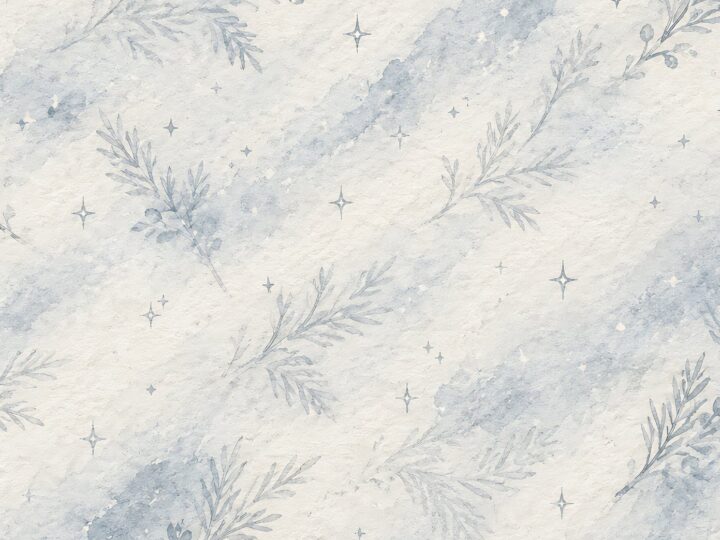
Alpine Knit Winter — 40 Digital Scrapbook Paper Designs
40 alpine winter paper designs in 12 × 12 inch and US Letter…
12×12 in 300 DPI Digital download
Digital Scrapbook Papers
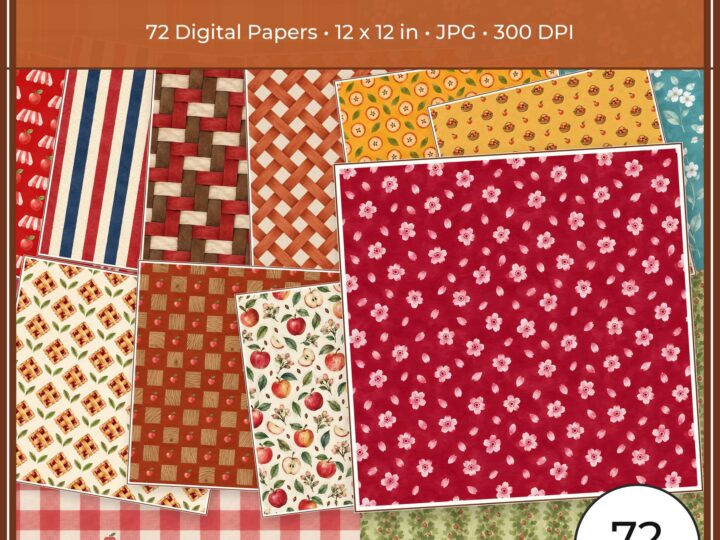
Apple Orchard & Cider Harvest Digital Papers
Build an apple-picking scrapbook page, journal entry or recipe card with 72 square…
Each product page identifies its checkout, current price, and digital delivery details.
ScrapBujo DT advice
Find where a PDF border is being lost
Compare the PDF on screen with the print preview first. If the border is already missing in the preview, check the document and selected paper size. If the preview is complete but the sheet is cropped, inspect scaling and printable margins. Try one plain-paper sheet before changing the artwork.
Compare borderless and Actual Size